Estimated Reading Time: 18 Minutes
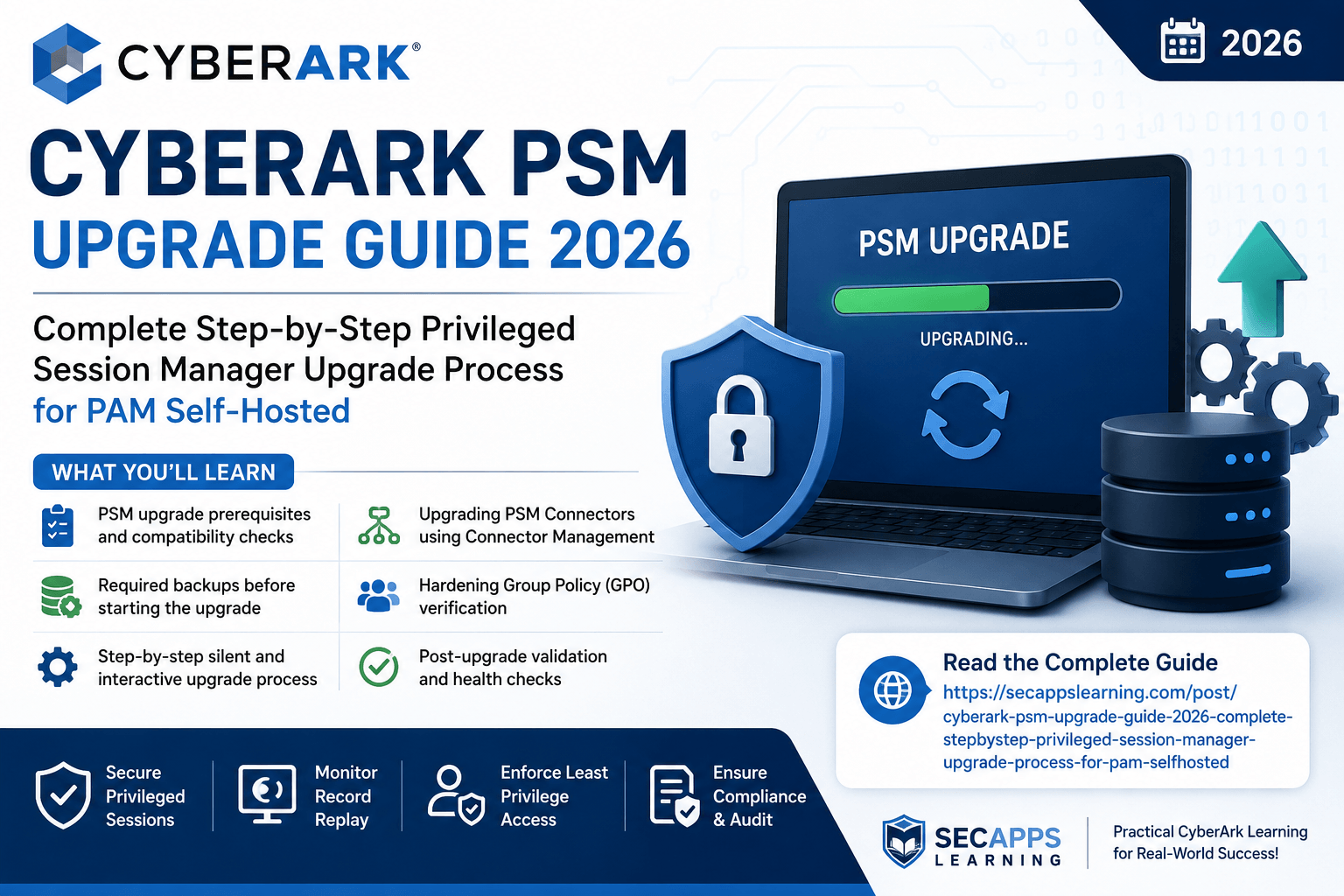
Understand how to safely upgrade the CyberArk Privileged Session Manager (PSM), prepare your production environment, verify compatibility, perform pre-upgrade validation, secure your environment, and avoid common upgrade failures followed by enterprise best practices used in real-world CyberArk implementations.
CyberArk Privileged Session Manager (PSM) is one of the most security-critical components within a CyberArk PAM Self-Hosted deployment. It serves as the secure gateway between privileged users and target systems, enabling organizations to isolate privileged sessions while recording every administrative activity for auditing, compliance, and forensic investigations.
As organizations continue upgrading to CyberArk PAM 15.x and later releases, keeping the PSM environment updated has become increasingly important. New releases introduce stronger security controls, enhanced protocol support, improved session stability, updated HTML5 Gateway capabilities, modern Connector Management, stronger TLS enforcement, better AppLocker integration, and improved compatibility with the latest Windows Server operating systems.
Unlike upgrading application software, upgrading CyberArk PSM requires careful planning because it directly affects privileged access across the enterprise. Any mistake during the upgrade process can interrupt administrator access, session recordings, ticketing integrations, or compliance monitoring. This is why enterprise organizations always perform detailed planning before upgrading production PSM servers.
This comprehensive guide explains every stage of the CyberArk PSM upgrade process, including preparation, compatibility validation, manual upgrades, silent upgrades, Connector Management upgrades, HTML5 Gateway upgrades, hardening procedures, AppLocker updates, Distributed Vault considerations, troubleshooting, and post-upgrade validation.
Whether you manage a single CyberArk deployment or a globally distributed PAM infrastructure, this guide follows industry best practices used by enterprise CyberArk engineers.
CyberArk Privileged Session Manager is the secure session isolation component of CyberArk PAM. Instead of allowing administrators to connect directly to critical servers, databases, network devices, or cloud platforms, privileged users establish their sessions through the PSM server.
The PSM acts as a controlled proxy between the administrator and the target system. Every keyboard input, mouse movement, command execution, clipboard action, and screen activity is monitored and securely recorded within the CyberArk Vault. This architecture eliminates the need to expose privileged credentials directly to administrators while providing complete visibility into privileged access.
Large enterprises often deploy multiple PSM servers behind load balancers to support thousands of concurrent privileged sessions while ensuring high availability and fault tolerance.
Modern PSM deployments support Windows RDP, SSH, SQL Server, Oracle, VMware, SAP, web applications, cloud consoles, custom Universal Connectors, and many other privileged connection types.
CyberArk continuously enhances the PSM platform by introducing security improvements, performance optimizations, support for newer operating systems, and updated third-party components.
An outdated PSM environment may expose organizations to compatibility issues, unsupported operating systems, deprecated TLS versions, or missing security enhancements. Upgrading also ensures compatibility with the latest versions of Vault, PVWA, CPM, Identity, and Connector Management.
Newer versions introduce improvements such as stronger TLS communication, Java updates for the HTML5 Gateway, better AppLocker automation, enhanced Connector Management capabilities, improved session reliability, updated browser isolation, modern authentication mechanisms including SAML and PKI, and better compatibility with Windows Server 2022.
Organizations subject to PCI-DSS, ISO 27001, SOX, HIPAA, or NIST compliance frameworks should keep their CyberArk infrastructure updated to maintain vendor support and security compliance.
Before beginning an upgrade, administrators should understand how the PSM interacts with other CyberArk components.
A standard CyberArk deployment typically includes the Digital Vault, Password Vault Web Access (PVWA), Central Policy Manager (CPM), Privileged Session Manager (PSM), HTML5 Gateway, Active Directory, and optional Distributed Vault or Disaster Recovery components.
When an administrator launches a privileged session from PVWA, the request is forwarded to the PSM. The PSM retrieves credentials securely from the Vault, establishes the remote connection, records the session, and uploads recordings back to the Vault after completion.
Because of these dependencies, PSM upgrades should always be coordinated with Vault, PVWA, and CPM upgrades.
Upgrade the Digital Vault first, followed by Disaster Recovery Vault, PVWA servers, CPM servers, PSM servers, HTML5 Gateway, and finally optional components such as PTA, PSMP, and Identity integrations.
The most important prerequisite before upgrading is ensuring that every CyberArk component is compatible with the target release.
Your existing Vault version must support the target PSM version. Likewise, PVWA, CPM, HTML5 Gateway, and Connector Management should all be verified against CyberArk's compatibility matrix before beginning the upgrade.
If SAML authentication is enabled, the Password Vault Web Access server must already be running version 14.0 or later.
Similarly, if TLS 1.3 communication will be enabled, the PSM server must be installed on Windows Server 2022 because earlier operating systems do not support CyberArk's TLS 1.3 implementation.
Organizations using Distributed Vaults should verify compatibility across every Vault, Satellite Vault, PVWA instance, and Connector before upgrading production environments.
A successful CyberArk upgrade begins long before Setup.exe is executed.
Production environments should first establish a maintenance window, notify privileged users, suspend scheduled password management activities where appropriate, verify server health, review backup procedures, and confirm rollback plans.
Administrators should validate that sufficient disk space exists for installation files, temporary logs, session recordings, and rollback snapshots.
It is also recommended to document the current PSM configuration, installed connectors, Universal Connector packages, HTML5 Gateway configuration, AppLocker rules, Windows Group Policies, firewall rules, certificates, and custom connection components before beginning any upgrade activity.
Always perform the upgrade in Development, Test, User Acceptance Testing (UAT), and Disaster Recovery environments before upgrading Production. This significantly reduces deployment risk and helps identify environment-specific issues early.
Before executing the installation, download the latest CyberArk PSM installation package from the CyberArk Marketplace or your software repository.
If the installation package was downloaded from the internet, Windows may block PowerShell scripts for security reasons. Unblock all downloaded files using PowerShell before starting the upgrade to avoid execution policy errors.
Also verify that your existing CyberArk license remains valid. Existing production licenses generally continue working after upgrades and do not require reactivation unless instructed by CyberArk.
Before upgrading, verify that the PSM server still complies with your organization's security baseline. Confirm Windows security updates are current, antivirus exclusions are configured correctly, required services are healthy, certificates remain valid, firewall rules permit communication with Vault and PVWA, and privileged service accounts have not expired.
Organizations using smart card authentication, PKI, SAML, ticketing integrations, or Universal Connectors should verify these configurations before beginning the maintenance window.
Security validation reduces post-upgrade surprises and helps ensure that production services resume immediately after deployment.
Although CyberArk upgrades are generally reliable, enterprise change management always requires complete backups before deployment.
Capture a full virtual machine snapshot if the environment is virtualized. Back up the CyberArk PSM installation directory, custom connection components, Universal Connectors, certificates, Group Policy Objects, AppLocker configuration files, HTML5 Gateway configuration, recordings configuration, Windows Registry settings, and any customized PowerShell scripts.
Having a verified rollback plan ensures rapid recovery if unexpected issues occur during the maintenance window.
Execute the CyberArk PSM upgrade using both the Installation Wizard and PowerShell automation, configure registration with the Vault, upgrade the HTML5 Gateway, validate Tomcat and Java requirements, and understand enterprise deployment considerations for production environments.
Once the pre-upgrade validation is complete and all prerequisites have been verified, the actual upgrade process can begin. CyberArk supports multiple deployment methods, allowing organizations to upgrade Privileged Session Manager based on their operational model and automation strategy.
Smaller environments typically use the Installation Wizard, while medium and large enterprises generally prefer PowerShell automation because it provides consistency, repeatability, and easier integration with change management pipelines.
Regardless of the method selected, the objective remains the same: upgrade the existing PSM installation while preserving configuration, maintaining connectivity with the Vault, and ensuring that all security controls continue functioning after the deployment.
Always upgrade a secondary or standby PSM server first, validate session functionality, and only then continue with the remaining production servers. This minimizes operational risk and allows quick rollback if unexpected issues are detected.
Before replacing binaries, ensure that the Privileged Session Manager services are stopped gracefully.
Stopping the services prevents active session corruption and avoids file-locking issues during installation. Verify that no privileged sessions remain active before stopping the service. In enterprise environments, administrators usually schedule a maintenance window to ensure that no production users are connected.
If your organization uses multiple load-balanced PSM servers, remove the server being upgraded from the load balancer before beginning maintenance.
Navigate to the extracted CyberArk installation package and launch Setup.exe.
On Windows servers with User Account Control (UAC) enabled, always right-click the executable and choose Run as Administrator.
The installer automatically detects the existing PSM installation and switches into Upgrade Mode.
Unlike a fresh installation, the upgrade preserves the majority of existing configuration, including installed connectors, recordings configuration, service settings, and registration information.
The installer also verifies prerequisite Windows components before proceeding.
During the installation wizard, CyberArk displays the current configuration.
Administrators can either retain the existing settings or modify parameters such as installation paths, recording directories, authentication options, or communication settings.
For production environments, retaining existing settings is generally recommended unless infrastructure changes are being implemented simultaneously.
Changing multiple configuration parameters during an upgrade increases deployment complexity and makes troubleshooting more difficult.
Once validation completes, the installer begins replacing application binaries while preserving existing configuration.
During this stage CyberArk upgrades:
Privileged Session Manager
Core services
Session components
Installed connectors
Supporting libraries
Configuration files
Registration modules
The installer also upgrades dependent components where required.
For example, if Oracle Instant Client versions are outdated, CyberArk automatically upgrades them to supported releases.
Upon completion, select Finish.
Although the installation may complete successfully, CyberArk recommends restarting the server before placing it back into production.
The restart ensures:
Windows services initialize correctly
Drivers reload properly
Group Policy refreshes
Security policies apply
Registry updates become active
Only after the reboot should the server be returned to the production load balancer.
Never reboot multiple production PSM servers simultaneously. Upgrade and validate one server at a time to preserve privileged access availability.
Most enterprise organizations automate CyberArk upgrades using PowerShell.
Silent upgrades eliminate manual interaction, improve consistency, and support deployment across dozens or even hundreds of PSM servers.
The process begins by editing the InstallationConfig.xml file.
Administrators specify values such as installation directory, recordings directory, organization name, and optional features like SAML authentication.
Once configured, execute the PowerShell upgrade script in Upgrade mode. The automation performs the same actions as the graphical installer while allowing integration into deployment pipelines such as Azure DevOps, Jenkins, or SCCM.
Silent upgrades are particularly useful in geographically distributed environments where maintaining identical configurations across all servers is essential.
After upgrading the software, the PSM must register itself with the Digital Vault.
Registration establishes the trust relationship between the PSM server and the CyberArk Vault, allowing privileged sessions to retrieve credentials securely.
The registration configuration file defines parameters including:
Vault hostname
Vault communication port
Vault administrator account
TLS communication settings
PKI authentication
SAML support
Distributed Vault configuration
CyberArk strongly recommends using the Vault Administrator account during registration because it already possesses the necessary permissions to create the required Vault objects.
If multiple PSM servers exist in the same environment, use the same Vault installation account for consistency.
CyberArk supports several methods for supplying Vault credentials during registration.
The recommended approach is using SecureString objects within PowerShell, preventing passwords from appearing in scripts or command history.
Interactive authentication is also supported for manual upgrades.
Passing passwords in clear text should be avoided because it exposes sensitive credentials in command history and process memory.
Organizations following security frameworks such as PCI DSS, ISO 27001, or NIST should always use encrypted credential handling during automated deployments.
Organizations operating Disaster Recovery or Distributed Vault architectures must register the PSM against both the Primary Vault and Disaster Recovery Vault.
Doing so ensures uninterrupted privileged access if failover occurs.
During registration, specify both Vault addresses within the configuration file.
CyberArk automatically establishes communication with the appropriate Vault based on availability.
This approach significantly improves resilience in enterprise deployments.
Modern CyberArk deployments frequently utilize the HTML5 Gateway, allowing administrators to launch privileged sessions directly from a web browser without requiring a native RDP client.
Because the HTML5 Gateway operates independently of the PSM application, it requires a separate upgrade procedure.
Before beginning, verify that the CA certificates used by the PSM are correctly installed within the operating system.
Linux-based HTML5 Gateway servers should contain properly configured certificate trust stores before the upgrade begins.
Failure to validate certificates may result in browser session failures after deployment.
CyberArk PSM HTML5 Gateway now relies on Java 21.
If another Java version is currently active, update the default runtime after installation.
Running unsupported Java versions can prevent Tomcat from starting correctly.
Always verify the active Java version before placing the gateway back into production.
Tomcat provides the web application framework used by the HTML5 Gateway.
CyberArk recommends upgrading Tomcat whenever the installed version falls below supported releases.
Older Tomcat versions may contain known vulnerabilities or compatibility limitations with modern browsers.
Administrators should validate the existing version before deployment.
If necessary, upgrade to the latest supported release and restart the Tomcat service after installation.
Organizations using Linux graphical sessions often rely on X-Forwarding.
Beginning with CyberArk 15.x, administrators should review all relevant connection components and verify that the required XServer parameters are configured correctly.
Failure to update X-Forwarding settings may prevent graphical Linux sessions from launching successfully after the upgrade.
Testing representative Linux connections immediately after deployment helps identify configuration issues early.
Large enterprises commonly deploy multiple Password Vault Web Access servers behind load balancers.
When multiple PVWA instances exist, administrators must ensure that the required application users possess appropriate permissions within the relevant Safes.
Failure to configure these permissions can result in Secure Ad-Hoc Connections failing or session recordings not being created correctly.
Consistency across all PVWA servers is essential for reliable privileged session management.
Before returning the upgraded server to production, perform functional validation.
Launch several representative privileged sessions covering Windows, Linux, SQL Server, and web application connectors.
Verify that:
Sessions launch successfully.
Session recordings are created.
Recordings upload to the Vault.
Session monitoring functions correctly.
Clipboard restrictions operate as expected.
Connection Components load without errors.
HTML5 browser sessions function normally.
Any failures detected during validation should be resolved before the server is returned to production traffic.
Validate session recordings, Vault connectivity, HTML5 Gateway functionality, Connector execution, load balancer health, TLS communication, certificate trust, Windows services, and event logs before completing the maintenance window.
You may also find these guides useful:
Beginning with modern CyberArk PAM Self-Hosted releases, Connector Management provides a centralized method of upgrading Privileged Session Manager servers. Instead of manually logging into every PSM server, administrators can initiate upgrades directly from the Connector Management Portal.
This dramatically simplifies enterprise deployments where organizations maintain dozens or even hundreds of distributed PSM servers.
Connector Management automatically detects installed PSM versions, compares them against available releases, and provides a guided upgrade experience with centralized monitoring.
Organizations using subscription licenses should strongly consider Connector Management because it reduces administrative effort while ensuring consistent deployment standards across all environments.
Before initiating the upgrade through Connector Management, administrators should verify that several prerequisites are satisfied.
The Windows account performing the deployment must possess Local Administrator privileges on the target server. In Active Directory environments, CyberArk recommends using a domain administrator account specifically designated for deployment operations.
The Vault Administrator credentials should be available, including Vault address, communication port, username, and password.
CyberArk also recommends ensuring that the PSMConnect and PSMAdminConnect users are already managed by CPM. This enables automatic password rotation and eliminates manual password maintenance after the upgrade.
Organizations using customized AppLocker configurations should carefully review the existing PSMConfigureAppLocker.xml file before beginning the upgrade. Connector Management automatically merges custom rules with the latest CyberArk security policies, making this the ideal time to review application allow lists.
Once the Connector Management agent detects the installed PSM server, administrators can initiate the upgrade directly from the portal.
Selecting Upgrade opens the deployment wizard, where deployment options and environment settings are configured.
CyberArk allows administrators to retain existing PSM configuration values or modify them during the upgrade.
For production environments, retaining validated configuration settings generally minimizes deployment risk.
Several installation parameters determine how the upgraded PSM server behaves.
The installer requires Vault credentials that possess sufficient permissions to register the upgraded server.
CyberArk strongly recommends using the Vault Administrator account during installation because it has the required authorizations within the Vault hierarchy.
The deployment wizard also requests Windows credentials used to execute the installation process. For domain deployments, these credentials should belong to an Active Directory administrator.
Organizations upgrading to newer CyberArk versions often enable encrypted Vault communication using TLS.
Whenever possible:
✔ Enable TLS communication
✔ Use Vault version 14.0 or later
✔ Configure Vault on HTTPS (typically port 443)
✔ Restrict communication to TLS 1.3 where supported
✔ Install Windows Server 2022 when using TLS 1.3
Using encrypted Vault communication significantly improves security while meeting modern compliance requirements.
Modern CyberArk deployments frequently integrate with enterprise Identity Providers such as:
If SAML authentication is already configured within the environment, administrators can enable SAML during the upgrade.
Enabling SAML automatically enables PKI authentication as required by CyberArk.
Organizations that are not currently using SAML should leave this option disabled to avoid unnecessary configuration complexity.
Connector Management also supports enabling PKI authentication during upgrades.
PKI authentication allows smart-card based authentication between PSM and the Vault.
Because enabling PKI changes the authentication model, administrators should only enable this feature if it is already part of the organization's security architecture.
CyberArk also allows administrators to enable PSM for Windows Ticketing Integration.
When enabled, users must provide valid ticket references before privileged sessions begin.
This feature supports enterprise ITSM platforms including ServiceNow and similar ticketing solutions.
It is important to remember that ticketing integration functions only with the Primary Vault.
Satellite Vaults within Distributed Vault environments do not currently support ticket validation.
One of the most valuable improvements in recent CyberArk versions is the automatic execution of hardening tasks immediately after installation.
Instead of manually running dozens of scripts, Connector Management performs most security configurations automatically.
These hardening activities include:
The operating system is hardened according to CyberArk best practices.
This significantly reduces post-installation work while maintaining CyberArk security standards.
After installation completes, administrators should restart the upgraded PSM server.
CyberArk also recommends restarting the PVWA server or waiting until the configuration refresh interval completes.
This ensures the upgraded PSM immediately appears within the PVWA configuration and begins accepting sessions.
Organizations using customized account names must rerun the hardening scripts manually.
For example, if PSMConnect or PSMAdminConnect have been renamed or configured as domain accounts, administrators should execute:
PSMHardening.ps1
PSMConfigureAppLocker.ps1
These scripts recreate the required security policies while respecting custom usernames.
Organizations using SAML users should include the additional SAML parameters during script execution.
Even automated upgrades may occasionally encounter deployment issues.
CyberArk records detailed deployment logs that help administrators identify failures.
The primary log file is:
PSMRegistration-DATE-TIME.log
Common issues include:
Most registration problems can be resolved by correcting the Vault credentials, removing the failed component from Connector Management, and initiating a fresh deployment.
Organizations running Active Directory environments should implement CyberArk's official Group Policy Object (GPO).
Rather than configuring dozens of Windows security policies manually, CyberArk supplies a preconfigured GPO containing all recommended settings.
Administrators import this GPO through the Group Policy Management Console.
Once imported, the policy is linked to the Organizational Unit containing the PSM servers.
After replication completes, either restarting the server or executing:
gpupdate /force
applies all hardening settings immediately.
Using Group Policy provides several operational advantages.
Security settings remain consistent across all servers.
Future upgrades become easier because policies are centrally managed.
Compliance audits become significantly simpler.
Configuration drift is minimized.
Security administrators can review changes through Active Directory rather than individual servers.
For enterprises operating dozens of PSM servers, Group Policy deployment is considerably more scalable than manual configuration.
Following installation, administrators should verify that the upgraded server appears correctly within the Connector Management Portal.
The displayed version should match the installed CyberArk release.
Administrators should also confirm:
The PSM service is running.
Completing these validation checks before returning the server to production greatly reduces operational risk.
Advance your CyberArk skills with hands-on, enterprise-focused training:
Advance your CyberArk skills with hands-on, enterprise-focused training:
Large enterprises rarely operate a single CyberArk Vault. Most production environments deploy Distributed Vaults consisting of a Primary Vault and multiple Satellite Vaults to provide scalability, resilience, and geographic distribution.
When upgrading Privileged Session Manager in these environments, administrators must ensure that every PSM server continues communicating with the correct Vault after the upgrade. Registration parameters should reference both the Primary and Disaster Recovery Vaults where applicable so that failover continues to function without interruption.
If Session Management is being introduced for the first time as part of the upgrade, complete the Distributed Vault configuration before returning the upgraded PSM to production. Existing deployments should validate that all Distributed Vault settings remain intact after the upgrade, especially communication paths between the PSM, Vault, and PVWA.
Failure to validate these relationships may result in successful installation but failed session initiation once production traffic resumes.
Organizations using Linux or UNIX graphical applications often rely on X-Forwarding through PSM.
Beginning with newer CyberArk releases, administrators must verify that connection components reference the correct VcXsrv executable after upgrading.
Navigate to Administration → Configuration Options → Connection Components → Target Settings → Client Specific and verify that the XServerCommandLineX64 parameter exists.
If it does not exist, create the parameter and specify the appropriate VcXsrv command line.
This ensures graphical Linux sessions continue functioning correctly after upgrading to CyberArk 15.x.
Modern organizations increasingly use browser-based privileged access instead of installing thick clients.
CyberArk HTML5 Gateway provides secure browser-based connectivity to RDP and SSH sessions without requiring native client software.
Whenever PSM is upgraded, administrators should also upgrade the HTML5 Gateway to maintain compatibility.
Linux deployments using RPM packages follow a straightforward upgrade process.
Before beginning the upgrade, verify that the required CA certificates exist under the OpenSSL certificate directory. If the directory does not exist, create it and assign the appropriate permissions.
This guarantees that the upgraded gateway operates using CyberArk's supported Java version.
Many enterprises deploy the HTML5 Gateway inside containers.
Container deployments simplify upgrades considerably.
Administrators first stop and purge the existing HTML5 Gateway container.
Once removed, deploy the latest CyberArk container image following the standard installation process.
Because containers are immutable by design, upgrading effectively replaces the entire runtime with the latest secure image while preserving external configuration.
This approach minimizes upgrade complexity and reduces long-term maintenance effort.
CyberArk HTML5 Gateway depends heavily on Apache Tomcat.
Older Tomcat releases contain security vulnerabilities and performance issues that can affect browser-based privileged sessions.
CyberArk recommends verifying the installed Tomcat version before completing the PSM upgrade.
If the environment is running:
Tomcat 8.5 earlier than build 8.5.72
or
Tomcat 9.0 earlier than build 9.0.54
the administrator should upgrade Tomcat before placing the HTML5 Gateway back into production.
Updating Tomcat ensures compatibility with newer CyberArk releases while eliminating known security vulnerabilities.
Large organizations often automate upgrades across dozens or hundreds of Privileged Session Manager servers.
CyberArk supports this through PowerShell-based silent upgrades.
Instead of interacting with installation wizards, administrators configure XML files and execute automation scripts.
This approach provides consistency, repeatability, and reduced deployment time.
The first step involves updating InstallationConfig.xml.
This configuration file defines:
Organizations should verify that installation directories remain unchanged unless intentionally migrating to a new location.
If SAML authentication is required, both EnableSAML and EnablePKI should be configured appropriately.
Once configuration is complete, administrators launch the upgrade using Execute-Stage.ps1.
CyberArk supports both interactive execution and fully silent deployment.
Silent deployments automatically restart the server after installation completes, making them ideal for enterprise deployment tools such as SCCM, Intune, Ansible, or enterprise orchestration platforms.
Automation dramatically reduces administrator effort while ensuring every server follows identical installation procedures.
Following installation, CyberArk performs several post-installation activities.
These tasks configure local PSM users, optimize connector performance, configure web application support, enable optional printing, and improve SSL connection performance where Certificate Revocation Lists are unavailable.
Organizations should review every optional feature before enabling it, ensuring only required functionality becomes part of the hardened production environment.
Installation alone does not complete the deployment.
The upgraded server must also register with the CyberArk Vault.
Registration creates the trusted relationship between the PSM and Vault while assigning a unique identifier to the server.
Administrators configure RegistrationConfig.xml with Vault communication details before executing the registration script.
The configuration includes Vault hostname, communication port, administrator credentials, TLS settings, DNS registration preferences, ticketing integration, API Gateway details, and optional PKI authentication.
CyberArk strongly recommends using secure password input methods rather than clear-text passwords when executing registration scripts.
Once registration completes successfully, the server receives a unique PSM-Hostname identifier that becomes visible inside PVWA under configured PSM servers.
Security hardening remains one of the most important phases of any PSM deployment.
CyberArk executes multiple hardening scripts immediately after registration.
These scripts strengthen Windows security by disabling legacy protocols, configuring AppLocker, restricting executable access, securing Remote Desktop configuration, applying TLS hardening, and protecting session boundaries.
Organizations deploying web application connectors should ensure that SupportWebApplications is enabled before executing the hardening scripts.
One of the most significant improvements introduced in recent CyberArk releases is enhanced AppLocker management.
During upgrades, CyberArk automatically merges existing custom AppLocker rules with the newest CyberArk baseline.
This dramatically reduces manual effort while preserving organization-specific connector configurations.
Administrators should nevertheless validate the merged configuration before returning the server to production.
If new Universal Connectors or third-party applications have been introduced since the previous upgrade, additional executable rules may need to be added manually.
CyberArk also creates backup copies of previous AppLocker configurations, but these backups should never replace the newly generated configuration because the newer files include updated security protections.
Organizations using Active Directory should import the latest CyberArk Group Policy template after upgrading.
Although previous GPOs continue functioning, newer releases frequently introduce additional security policies.
Importing the latest template ensures all new Windows security settings become active.
If custom usernames are used instead of the default PSMConnect or PSMAdminConnect accounts, administrators should update the imported GPO accordingly before applying it to production servers.
Many enterprises configure CPM to automatically manage passwords for:
After upgrading, verify that reconcile accounts remain associated with these managed users.
CyberArk recommends enabling automatic password reconciliation whenever password synchronization issues are detected.
This minimizes administrative effort while ensuring privileged credentials remain synchronized across all managed systems.
Even well-planned upgrades occasionally encounter issues.
Fortunately, CyberArk provides detailed logs and troubleshooting utilities.
If privileged sessions fail immediately after the upgrade, administrators should execute PSMChecker.
PSMChecker validates permissions, Windows configuration, service configuration, connector settings, and numerous common deployment problems.
If the PSM service fails to start entirely, administrators should review:
Event Viewer → Windows Application Logs
These files typically identify configuration mistakes, missing permissions, blocked DLL files, or failed registrations.
Resolving these issues before returning the server to production significantly reduces operational risk.
Before declaring the upgrade complete, administrators should perform comprehensive validation.
Successful validation includes confirming that privileged sessions launch successfully, recordings upload correctly, connectors operate normally, browser-based sessions function through HTML5 Gateway, ticketing integration continues working, AppLocker rules permit all approved executables, and CPM successfully manages PSM service accounts.
Production upgrades should never conclude until each validation step has been completed successfully.
Upgrading CyberArk Privileged Session Manager is far more than simply installing a newer software version. It is a comprehensive security process involving compatibility validation, automated deployment, Vault registration, HTML5 Gateway upgrades, TLS configuration, AppLocker enforcement, Group Policy hardening, and enterprise-wide validation.
Organizations that follow a structured upgrade methodology significantly reduce downtime, improve compliance, strengthen security, and ensure seamless privileged session management across production environments.
Your email address will not be published. Required fields are marked*
 August 28 2026
 July 26 2026
 Explained Architecture, Plugins, Connector Management, Hardening and Complete Credential Rotation Guide (2026).png) July 24 2026
July 24 2026
 July 24 2026
.png) July 17 2026
July 17 2026
 July 16 2026
July 10 2026
July 16 2026
July 10 2026
 July 09 2026
 July 05 2026
 — Complete Vault, DR, Cluster & Distributed Upgrade Handbook-.png) July 03 2026
July 03 2026
 vs Central Credential Provider (CCP) Complete Guide to Installation, Architecture, Licensing, SDKs, ASCP & Best Practices (2026)-.png) July 01 2026
July 01 2026
.png) June 30 2026
June 30 2026
 June 25 2026
 June 24 2026
.png) June 10 2026
June 10 2026
 June 09 2026
 – Complete Architecture, Deployment, HA, DR & Best Practices Guide 2026.png) June 06 2026
June 06 2026
 Certification Guide 2026 by SL.png) June 04 2026
June 04 2026
 Complete Guide 2026 – Identity Protection, Identity Threat Detection, AI-Powered Security Monitoring, Response Playbooks, and ISI Migration.png) June 02 2026
June 02 2026
 May 30 2026
 Complete Guide – Architecture, Security, User Provisioning & Identity Governance.png) May 29 2026
May 29 2026
 Complete Guide – IdentityIQ, Identity Security Cloud (ISC), Certification, Architecture & Career Roadmap.png) May 27 2026
May 27 2026
 Complete Getting Started Guide – Architecture, Configuration & Real-World Implementation.png) May 26 2026
May 26 2026
 – Complete Comparison 2026.png) May 24 2026
May 24 2026
 May 22 2026
 May 21 2026
 vs Privileged Session Manager (PSM) Complete 2026 Guide.png) May 20 2026
May 20 2026
 May 19 2026
.png) May 18 2026
May 18 2026
.png) May 17 2026
May 17 2026
 The Complete Beginner to Advanced Guide to Ethical Hacking.png) May 15 2026
May 15 2026
 May 15 2026
 May 14 2026
 by SecApps Learning.png) May 14 2026
May 14 2026
 May 13 2026
 (1).png) May 12 2026
May 12 2026
.png) May 11 2026
May 11 2026
 May 10 2026
 May 10 2026
 May 08 2026
.png) May 07 2026
May 07 2026
.png) May 06 2026
May 06 2026
.png) May 06 2026
May 06 2026
 Complete Guide (2026).png) May 05 2026
May 05 2026
.png) May 05 2026
May 05 2026
 (1).png) May 04 2026
May 04 2026
.png) May 03 2026
May 03 2026
.png) May 01 2026
May 01 2026
.png) May 01 2026
May 01 2026
.png) April 30 2026
April 30 2026
.png) April 29 2026
April 29 2026
.png) April 28 2026
April 28 2026
.png) April 27 2026
April 27 2026
 System Health, Safe Management, Platform & Master Policy Explained.png) April 26 2026
April 26 2026
 April 20 2026
.png) April 19 2026
April 19 2026
.png) April 17 2026
April 17 2026
.png) April 16 2026
April 16 2026
.png) April 15 2026
April 15 2026
 April 14 2026
 April 10 2026
 April 09 2026
 April 08 2026
 April 07 2026
 July 31 2025
 May 01 2026
 December 26 2024
 December 15 2024
.jpeg) December 08 2024
December 08 2024
 May 01 2026
 October 29 2024
 October 19 2024
 October 15 2024
 October 07 2024
 September 30 2024
 September 23 2024
 September 16 2024
 May 04 2026
 August 27 2024
 August 27 2024
 August 21 2024
 August 19 2024
 May 01 2026
 May 10 2024
 May 08 2024
 May 01 2026
 April 30 2024
.jpg) April 29 2024
April 29 2024
 April 25 2024
 April 22 2024
 April 12 2024
 April 05 2024
 March 30 2024
 May 01 2026
 March 27 2024
 March 27 2024
 March 11 2024
 March 07 2024
 February 29 2024
.jpg) May 01 2026
May 01 2026
 January 24 2024
 January 20 2024
 January 20 2024
 January 20 2024
 January 20 2024
 January 03 2024
 January 03 2024
 January 03 2024
 January 03 2024
Copyright 2022 SecApps Learning. All Right Reserved

Comments ()