.png)
In enterprise cybersecurity environments, business continuity is one of the most critical requirements. Organizations cannot afford downtime for privileged access systems because these systems protect highly sensitive credentials, privileged identities, infrastructure secrets, and administrative access across the enterprise.
This is where the CyberArk Primary-DR (Disaster Recovery) Architecture becomes essential.
The CyberArk Primary-DR environment is designed to ensure:
High availability
Disaster recovery readiness
Business continuity
Secure Vault replication
Minimal downtime during failures
In this detailed guide, we will explore:
CyberArk Primary-DR architecture
How replication works
Full replication vs incremental replication
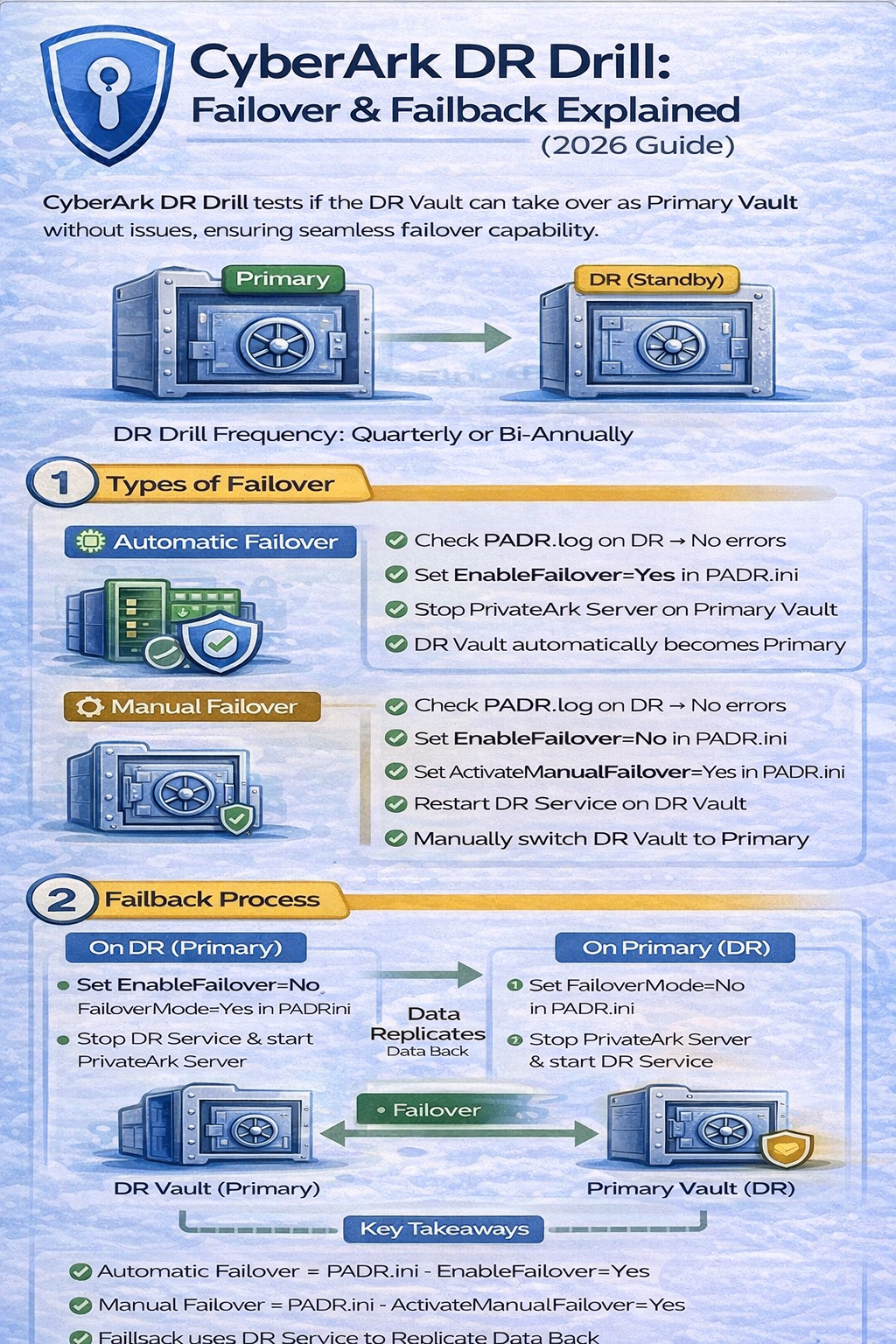
Failover process
Automatic vs manual failover
Vault installation best practices
Supported platforms
Security hardening
Digital Vault server requirements
Real-world enterprise examples
Common troubleshooting scenarios
If you are preparing for CyberArk implementation projects, interviews, certifications, or real-time deployments, understanding the Primary-DR architecture is extremely important.
You can also explore related deep-dive articles:
The CyberArk Primary-DR architecture consists of:
| Component | Purpose |
|---|---|
| Primary Vault | Main active Digital Vault |
| DR Vault | Standby replica of Primary Vault |
| PVWA | Password Vault Web Access |
| CPM | Central Policy Manager |
| PSM | Privileged Session Manager |
| PTA | Privileged Threat Analytics |
The Primary Vault acts as the production Vault where all CyberArk operations occur.
The DR Vault continuously replicates data from the Primary Vault and remains ready to take over if the Primary Vault becomes unavailable.
This architecture ensures uninterrupted privileged access management services during disasters or outages.
Modern organizations depend heavily on PAM solutions.
If the CyberArk Vault becomes unavailable:
Password retrieval stops
Session management fails
CPM password rotation stops
Administrators lose privileged access
Business operations may halt
For sectors like:
Banking
Telecom
Healthcare
Government
Cloud providers
Even a few minutes of downtime can create major operational and compliance issues.
CyberArk DR architecture minimizes these risks.
How Data Replication Works Between Primary Vault and DR Vault
The DR Vault continuously synchronizes data from the Primary Vault using the CyberArk protocol.
The replication includes:
Metadata Replication
Metadata stored inside the Vault database includes:
Password objects
User information
Safes
Policies
Configuration data
CyberArk uses:
mySQL dump capabilities for full replication
mySQL binlog for incremental replication
External File Replication
CyberArk also replicates external files such as:
Safe files
PSM recordings
File attachments
Vault folders
These files exist within the Vault file system.
CyberArk supports two replication methods:
| Replication Type | Description |
|---|---|
| Full Replication | Complete Vault database and files replication |
| Incremental Replication | Only changed data is replicated |
What is Full Replication?
Full replication creates a complete snapshot of the Primary Vault database and transfers it to the DR Vault.
This process ensures the DR Vault receives a complete copy of the production environment.
The process includes:
Step 1: Database Snapshot Creation
The Primary Vault creates a mySQL dump snapshot.
Step 2: DR Vault Retrieves Data
The DR Vault downloads the snapshot securely.
Step 3: Database Restoration
The DR Vault applies the snapshot locally.
Step 4: External File Synchronization
Safe files and directories are copied.
During replication:
PrivateArk\Safes\Metadata
must not be accessed.
Accessing this folder can cause replication failure.
Full replication occurs in these situations:
First DR Installation
When a DR Vault is installed for the first time.
Manual Full Replication
Administrators can manually initiate replication.
Replication Conflict Detection
If incremental replication conflicts cannot be resolved, CyberArk automatically triggers full replication.
What is Incremental Replication?
Incremental replication transfers only changed data instead of the full database.
This improves:
Performance
Network efficiency
Replication speed
Metadata Changes Retrieval
The DR Vault retrieves:
Database changes
Binlogs
File modifications
Database Synchronization
The changes are applied locally on the DR Vault.
External File Copy
Only updated files are copied.
How Failover Works Between Primary Vault and DR Vault
The DR Vault constantly checks the status of the Primary Vault using:
ICMP Echo Protocol (Ping)
If the Primary Vault becomes unavailable:
Replication stops
DR Vault activates
Components connect to DR Vault
The environment continues functioning normally.
PVWA Failover
PVWA automatically searches for another active Vault using:
Vault.ini
configuration.
Important Behavior
Existing sessions are dropped
Users reconnect automatically
Functionality resumes after DR activation
CPM Failover
CPM does NOT automatically fail over according to CyberArk best practices.
Administrators must manually configure CPM during DR scenarios.
PSM Failover
PSM also requires manual failover activation.
This prevents accidental session routing issues.
PTA Failover
PTA automatically reconnects to the active Vault.
PTA DR instances activate when primary PTA becomes unavailable.
CyberArk supports two failover approaches.
Manual Failover
How it Works
A Vault Administrator manually promotes the DR Vault to Primary.
Advantages
Better control
Prevents accidental failovers
Safer for multi-region deployments
Best for:
Large enterprises
Multi-region environments
Banking sectors
How it Works
The DR application automatically promotes the DR Vault after timeout detection.
Default activation time:
7 Minutes
This value is configurable.
CyberArk recommends automatic failover only when:
Primary and DR are in the same region
Different data centers are used
A network communication failure may trigger false failover even when Primary Vault is still operational.
This can create split-brain scenarios.
Replication failures may happen before failover.
If failover occurs after failed full replication:
DR Vault starts successfully
Data reflects the last successful replication
This means some data may not be up-to-date.
Special Scenario
If database snapshot transfer completed successfully before failover:
DR Vault starts with updated data
If external file replication fails:
Database synchronization still occurs
Orphan files are removed
Example:
Old PSM recordings
Unlinked external files
The Digital Vault is the core of CyberArk PAM.
It securely stores:
Passwords
Secrets
SSH Keys
Certificates
Sensitive files
It is one of the most hardened components in the PAM architecture.
CyberArk currently supports:
| OS | Supported |
|---|---|
| Windows Server 2022 | Yes |
| Windows Server 2019 | Yes |
Supported editions include:
Standard English
Datacenter English
German Edition
Japanese Edition
The Digital Vault supports:
| Architecture | Supported |
|---|---|
| Standalone Vault | Yes |
| Primary-DR | Yes |
| Cluster Vault | Yes |
| Distributed Vaults | Yes |
| Cloud Deployments | Yes |
Learn more here:
CyberArk Distributed Vaults Guide
Before installation:
Latest Microsoft security patches
Visual C++ Redistributable 2015-2022
.NET Framework 4.8 Runtime
After installing .NET:
Machine Restart is Mandatory
before Vault installation.
CyberArk Vault supports:
ASCII encoding
English + one additional OS locale
Unicode is NOT supported.
Only alphanumeric characters should be used for:
Safes
Users
Groups
Installation paths
Platforms
SSL Certificate Requirements
CyberArk requires:
Base64 encoded X.509 certificates
Minimum 4096-bit public key
Unsupported Algorithms
The following are unsupported:
RSASSA-PSS
ECDSA
Use Clean Operating System
CyberArk strongly recommends:
No Third-Party Software
on the Vault server.
Only TCP/IP should remain enabled.
DNS connectivity should be minimized on the Vault.
Vault servers should always use static IP addresses.
Recommended steps:
BIOS password protection
Boot from HDD first
Enable DEP
Preliminary Steps
Before installation:
Install prerequisites
Restart machine
Verify network connectivity
Configure static IP
Step 1: Copy Installation Package
Create a folder and copy installation files.
Step 2: Run Setup.exe
Run as Administrator.
Step 3: Accept License Agreement
Proceed with licensing.
Step 4: Select Standalone Installation
Choose:
Standalone Vault Installation
Step 5: Configure Installation Paths
Specify:
Server files location
Safes location
Digital keys location
Safe location path length:
Maximum 20 Characters
During installation:
Configure Remote Control Agent
Define allowed IPs
Configure password
Unsupported characters:
space, ", &, <, >, |
DR Installation Overview
The DR application:
Configures replication
Connects to Primary Vault
Synchronizes Vault data
During installation:
DR user is configured
Password synchronization occurs automatically
| Client | Supported |
|---|---|
| Credential Provider | Yes |
| PVWA | Yes |
| PSM | Yes |
| PSMP | Yes |
A bank uses:
Primary Vault in New Delhi DC
DR Vault in Bangalore DC
Replication occurs continuously.
If New Delhi DC fails:
DR Vault activates
PVWA reconnects
Password retrieval continues
Operations remain active
This ensures zero business interruption.
Possible causes:
Network latency
Large file replication
Firewall issues
Vault.ini Misconfiguration
Incorrect Vault.ini causes component failover failures.
CPM Failover Misunderstanding
Many administrators assume CPM failover is automatic.
It is NOT automatic.
Full Replication Failure
Usually caused by:
Metadata access
Storage issues
Network interruptions
Use Same Region for Auto Failover
Avoid false failovers.
Regularly Test DR Failover
Validate recovery procedures periodically.
Monitor Replication Health
Track:
Binlog replication
File synchronization
Vault connectivity
Keep Vault Hardened
Never install unnecessary software.
Document Recovery Procedures
Maintain DR runbooks for operational teams.
The CyberArk Primary-DR environment is one of the most important architectures in enterprise PAM deployments.
It ensures:
Business continuity
Disaster recovery readiness
High availability
Secure privileged access
Understanding:
Vault replication
Full and incremental synchronization
Failover behavior
Vault hardening
Installation best practices
is essential for every CyberArk engineer and architect.
As organizations continue adopting Zero Trust and Identity Security models, CyberArk DR architecture remains critical for protecting enterprise privileged access environments.
Master:
CyberArk Vault
CPM
PSM
DR Architecture
Distributed Vaults
Cluster Environment
Real-time troubleshooting
Installation on AWS
Automation and integrations
with hands-on implementation-focused training.
👉 Enroll in CyberArk Full Training Program
Explore more advanced CyberArk guides:
Your email address will not be published. Required fields are marked*
 August 28 2026
 July 26 2026
 Explained Architecture, Plugins, Connector Management, Hardening and Complete Credential Rotation Guide (2026).png) July 24 2026
July 24 2026
 July 24 2026
.png) July 17 2026
July 17 2026
 July 16 2026
 July 10 2026
 July 09 2026
 July 05 2026
 — Complete Vault, DR, Cluster & Distributed Upgrade Handbook-.png) July 03 2026
July 03 2026
 vs Central Credential Provider (CCP) Complete Guide to Installation, Architecture, Licensing, SDKs, ASCP & Best Practices (2026)-.png) July 01 2026
July 01 2026
.png) June 30 2026
June 30 2026
 June 25 2026
 June 24 2026
.png) June 10 2026
June 10 2026
 June 09 2026
 – Complete Architecture, Deployment, HA, DR & Best Practices Guide 2026.png) June 06 2026
June 06 2026
 Certification Guide 2026 by SL.png) June 04 2026
June 04 2026
 Complete Guide 2026 – Identity Protection, Identity Threat Detection, AI-Powered Security Monitoring, Response Playbooks, and ISI Migration.png) June 02 2026
June 02 2026
 May 30 2026
 Complete Guide – Architecture, Security, User Provisioning & Identity Governance.png) May 29 2026
May 29 2026
 Complete Guide – IdentityIQ, Identity Security Cloud (ISC), Certification, Architecture & Career Roadmap.png) May 27 2026
May 27 2026
 Complete Getting Started Guide – Architecture, Configuration & Real-World Implementation.png) May 26 2026
May 26 2026
 – Complete Comparison 2026.png) May 24 2026
May 24 2026
 May 22 2026
 May 21 2026
 vs Privileged Session Manager (PSM) Complete 2026 Guide.png) May 20 2026
May 20 2026
 May 19 2026
.png) May 18 2026
May 17 2026
May 18 2026
May 17 2026
 The Complete Beginner to Advanced Guide to Ethical Hacking.png) May 15 2026
May 15 2026
 May 15 2026
 May 14 2026
 by SecApps Learning.png) May 14 2026
May 14 2026
 May 13 2026
 (1).png) May 12 2026
May 12 2026
.png) May 11 2026
May 11 2026
 May 10 2026
 May 10 2026
 May 08 2026
.png) May 07 2026
May 07 2026
.png) May 06 2026
May 06 2026
.png) May 06 2026
May 06 2026
 Complete Guide (2026).png) May 05 2026
May 05 2026
.png) May 05 2026
May 05 2026
 (1).png) May 04 2026
May 04 2026
.png) May 03 2026
May 03 2026
.png) May 01 2026
May 01 2026
.png) May 01 2026
May 01 2026
.png) April 30 2026
April 30 2026
.png) April 29 2026
April 29 2026
.png) April 28 2026
April 28 2026
.png) April 27 2026
April 27 2026
 System Health, Safe Management, Platform & Master Policy Explained.png) April 26 2026
April 26 2026
 April 20 2026
.png) April 19 2026
April 19 2026
.png) April 17 2026
April 17 2026
.png) April 16 2026
April 16 2026
.png) April 15 2026
April 15 2026
 April 14 2026
 April 10 2026
 April 09 2026
 April 08 2026
 April 07 2026
 July 31 2025
 May 01 2026
 December 26 2024
 December 15 2024
.jpeg) December 08 2024
December 08 2024
 May 01 2026
 October 29 2024
 October 19 2024
 October 15 2024
 October 07 2024
 September 30 2024
 September 23 2024
 September 16 2024
 May 04 2026
 August 27 2024
 August 27 2024
 August 21 2024
 August 19 2024
 May 01 2026
 May 10 2024
 May 08 2024
 May 01 2026
 April 30 2024
.jpg) April 29 2024
April 29 2024
 April 25 2024
 April 22 2024
 April 12 2024
 April 05 2024
 March 30 2024
 May 01 2026
 March 27 2024
 March 27 2024
 March 11 2024
 March 07 2024
 February 29 2024
.jpg) May 01 2026
May 01 2026
 January 24 2024
 January 20 2024
 January 20 2024
 January 20 2024
 January 20 2024
 January 03 2024
 January 03 2024
 January 03 2024
 January 03 2024
Copyright 2022 SecApps Learning. All Right Reserved

Comments ()