.png)
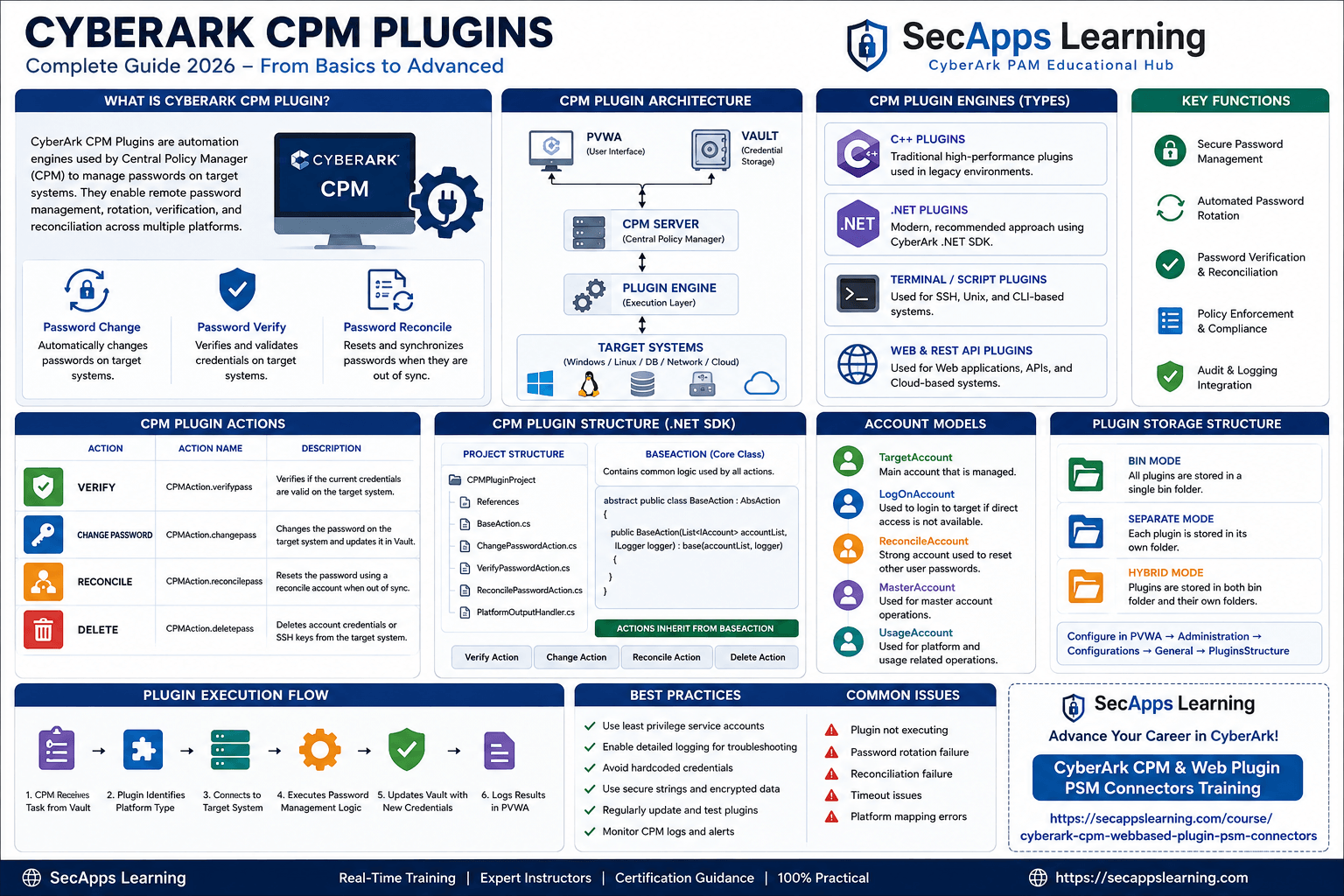
In CyberArk Privileged Access Management (PAM), the Central Policy Manager (CPM) is responsible for:
Password Rotation
Password Verification
Reconciliation
But what if your target system is not supported out-of-the-box?
👉 That’s where CPM Plugins come into play.
A CPM Plugin is a custom-developed integration that allows CyberArk to:
Connect to unsupported systems
Verify passwords
Change passwords
Reset credentials (Reconcile)
👉 Built using:
C# (.NET SDK) (Recommended)
PowerShell / Python (limited cases)
This is the #1 interview + real-world question 🔥
Managing Local Website Accounts
Managing Custom Applications
Managing Unsupported OS / Systems
No plugin available in Marketplace
👉 You are accessing AWS / Web App using Domain Account
✔ Use:
Windows Domain Platform
PSM Web Connector
👉 No CPM plugin needed ❌
| Scenario | CPM Plugin Required? |
|---|---|
| Domain account → website | ❌ No |
| Local website account | ✅ Yes |
| Custom application | ✅ Yes |
| No API / No automation | ❌ Impossible |
Before coding, ask:
👉 Can password be changed programmatically?
❌ OTP required → FAIL
❌ No API / UI automation → FAIL
If system cannot be automated, CPM plugin will NOT work.
CyberArk Vault → CPM → Plugin DLL → Target System
                   ↓
           Verify / Change / Reconcile
                   ↓
              Return Status
Download:
👉 https://visualstudio.microsoft.com/downloads/
✔ Select:
.NET Desktop Development
C:\Program Files (x86)\CyberArk\Password Manager\bin
Add references:
CyberArk.Extensions.Utilties.dll
CyberArk.Extensions.Plugins.Models.dll
Open Visual Studio
Create New Project
Select:
👉 Class Library (.NET Framework)
Name:
SecAppsCPMPlugin
using System.Collections.Generic;
using CyberArk.Extensions.Plugins.Models;
using CyberArk.Extensions.Utilties;

namespace SecAppsCPMPlugin
{
    public abstract class BaseAction : AbsAction
    {
        public BaseAction(List accountList, ILogger logger)
            : base(accountList, logger)
        {
        }

        protected string GetPassword(System.Security.SecureString secStr)
        {
            return new System.Net.NetworkCredential("", secStr).Password;
        }
    }
}
using System;
using System.Collections.Generic;
using CyberArk.Extensions.Plugins.Models;

namespace SecAppsCPMPlugin
{
    public class VerifyAction : BaseAction
    {
        public VerifyAction(List accountList, ILogger logger)
            : base(accountList, logger)
        {
        }

        public override CPMAction ActionName
        {
            get { return CPMAction.verifypass; }
        }

        public override int run(ref PlatformOutput platformOutput)
        {
            try
            {
                string username = TargetAccount.AccountProp["username"];
                string address = TargetAccount.AccountProp["address"];
                string password = GetPassword(TargetAccount.CurrentPassword);

                Logger.Info($"Verifying {username} at {address}");

                if (!string.IsNullOrEmpty(password))
                {
                    platformOutput.Message = "Verify successful";
                    return 0;
                }

                platformOutput.Message = "Invalid password";
                return 8801;
            }
            catch (Exception ex)
            {
                platformOutput.Message = "Verify failed: " + ex.Message;
                return 8800;
            }
        }
    }
}
using System;
using System.Collections.Generic;
using CyberArk.Extensions.Plugins.Models;

namespace SecAppsCPMPlugin
{
    public class ChangeAction : BaseAction
    {
        public ChangeAction(List accountList, ILogger logger)
            : base(accountList, logger)
        {
        }

        public override CPMAction ActionName
        {
            get { return CPMAction.changepass; }
        }

        public override int run(ref PlatformOutput platformOutput)
        {
            try
            {
                string username = TargetAccount.AccountProp["username"];
                string address = TargetAccount.AccountProp["address"];

                string oldPassword = GetPassword(TargetAccount.CurrentPassword);
                string newPassword = GetPassword(TargetAccount.NewPassword);

                Logger.Info($"Changing password for {username}");

                bool success = true;

                if (success)
                {
                    platformOutput.Message = "Password changed successfully";
                    return 0;
                }

                platformOutput.Message = "Password change failed";
                return 8802;
            }
            catch (Exception ex)
            {
                platformOutput.Message = "Change failed: " + ex.Message;
                return 8800;
            }
        }
    }
}
public class LogonAction : BaseAction
{
    public LogonAction(List accountList, ILogger logger)
        : base(accountList, logger)
    {
    }

    public override CPMAction ActionName
    {
        get { return CPMAction.logon; }
    }

    public override int run(ref PlatformOutput platformOutput)
    {
        platformOutput.Message = "Logon successful";
        return 0;
    }
}
👉 Build Solution
Output:
bin\Debug\SecAppsCPMPlugin.dll
Plugin DLL
CANetPluginInvoker.exe
Required DLLs
[targetaccount]
username=admin1
password=OldPass123
newpassword=NewPass123
address=secappslearning.com
safename=TestSafe
objectname=admin1
PolicyID=TestPlatform
CANetPluginInvoker.exe user.ini verifypass SecAppsCPMPlugin.dll true
CANetPluginInvoker.exe user.ini changepass SecAppsCPMPlugin.dll true
C:\Program Files (x86)\CyberArk\Password Manager\bin
Add plugin DLL name
CyberArk Password Manager
✔ Verify Password
✔ Change Password
Check:
CPM Logs
PVWA Audit
✔ Never hardcode passwords
✔ Always use ILogger
✔ Use proper return codes
✔ Test manually first
❌ Wrong platform
❌ No API support
❌ Ignoring workflow
❌ OTP-based systems
When do you create CPM plugin?
Difference between Change & Reconcile?
What if OTP required?
How to test plugin manually?
What is BaseAction?
👉 Coding is easy
👉 Understanding the system is everything
“If target system cannot be automated, CPM plugin will fail.”
Your email address will not be published. Required fields are marked*
 August 28 2026
 July 26 2026
 Explained Architecture, Plugins, Connector Management, Hardening and Complete Credential Rotation Guide (2026).png) July 24 2026
July 24 2026
 July 24 2026
.png) July 17 2026
July 17 2026
 July 16 2026
 July 10 2026
 July 09 2026
 July 05 2026
 — Complete Vault, DR, Cluster & Distributed Upgrade Handbook-.png) July 03 2026
July 03 2026
 vs Central Credential Provider (CCP) Complete Guide to Installation, Architecture, Licensing, SDKs, ASCP & Best Practices (2026)-.png) July 01 2026
July 01 2026
.png) June 30 2026
June 30 2026
 June 25 2026
 June 24 2026
.png) June 10 2026
June 10 2026
 June 09 2026
 – Complete Architecture, Deployment, HA, DR & Best Practices Guide 2026.png) June 06 2026
June 06 2026
 Certification Guide 2026 by SL.png) June 04 2026
June 04 2026
 Complete Guide 2026 – Identity Protection, Identity Threat Detection, AI-Powered Security Monitoring, Response Playbooks, and ISI Migration.png) June 02 2026
June 02 2026
 May 30 2026
 Complete Guide – Architecture, Security, User Provisioning & Identity Governance.png) May 29 2026
May 29 2026
 Complete Guide – IdentityIQ, Identity Security Cloud (ISC), Certification, Architecture & Career Roadmap.png) May 27 2026
May 27 2026
 Complete Getting Started Guide – Architecture, Configuration & Real-World Implementation.png) May 26 2026
May 26 2026
 – Complete Comparison 2026.png) May 24 2026
May 24 2026
 May 22 2026
 May 21 2026
 vs Privileged Session Manager (PSM) Complete 2026 Guide.png) May 20 2026
May 20 2026
 May 19 2026
.png) May 18 2026
May 18 2026
.png) May 17 2026
May 17 2026
 The Complete Beginner to Advanced Guide to Ethical Hacking.png) May 15 2026
May 15 2026
 May 15 2026
 May 14 2026
 by SecApps Learning.png) May 14 2026
May 14 2026
 May 13 2026
 (1).png) May 12 2026
May 12 2026
.png) May 11 2026
May 11 2026
 May 10 2026
 May 10 2026
 May 08 2026
.png) May 07 2026
May 07 2026
.png) May 06 2026
May 06 2026
.png) May 06 2026
May 06 2026
 Complete Guide (2026).png) May 05 2026
May 05 2026
.png) May 05 2026
May 05 2026
 (1).png) May 04 2026
May 04 2026
.png) May 03 2026
May 03 2026
.png) May 01 2026
May 01 2026
.png) May 01 2026
May 01 2026
.png) April 30 2026
April 29 2026
April 30 2026
April 29 2026
.png) April 28 2026
April 28 2026
.png) April 27 2026
April 27 2026
 System Health, Safe Management, Platform & Master Policy Explained.png) April 26 2026
April 26 2026
 April 20 2026
.png) April 19 2026
April 19 2026
.png) April 17 2026
April 17 2026
.png) April 16 2026
April 16 2026
.png) April 15 2026
April 15 2026
 April 14 2026
 April 10 2026
 April 09 2026
 April 08 2026
 April 07 2026
 July 31 2025
 May 01 2026
 December 26 2024
 December 15 2024
.jpeg) December 08 2024
December 08 2024
 May 01 2026
 October 29 2024
 October 19 2024
 October 15 2024
 October 07 2024
 September 30 2024
 September 23 2024
 September 16 2024
 May 04 2026
 August 27 2024
 August 27 2024
 August 21 2024
 August 19 2024
 May 01 2026
 May 10 2024
 May 08 2024
 May 01 2026
 April 30 2024
.jpg) April 29 2024
April 29 2024
 April 25 2024
 April 22 2024
 April 12 2024
 April 05 2024
 March 30 2024
 May 01 2026
 March 27 2024
 March 27 2024
 March 11 2024
 March 07 2024
 February 29 2024
.jpg) May 01 2026
May 01 2026
 January 24 2024
 January 20 2024
 January 20 2024
 January 20 2024
 January 20 2024
 January 03 2024
 January 03 2024
 January 03 2024
 January 03 2024
Copyright 2022 SecApps Learning. All Right Reserved
Comments ()