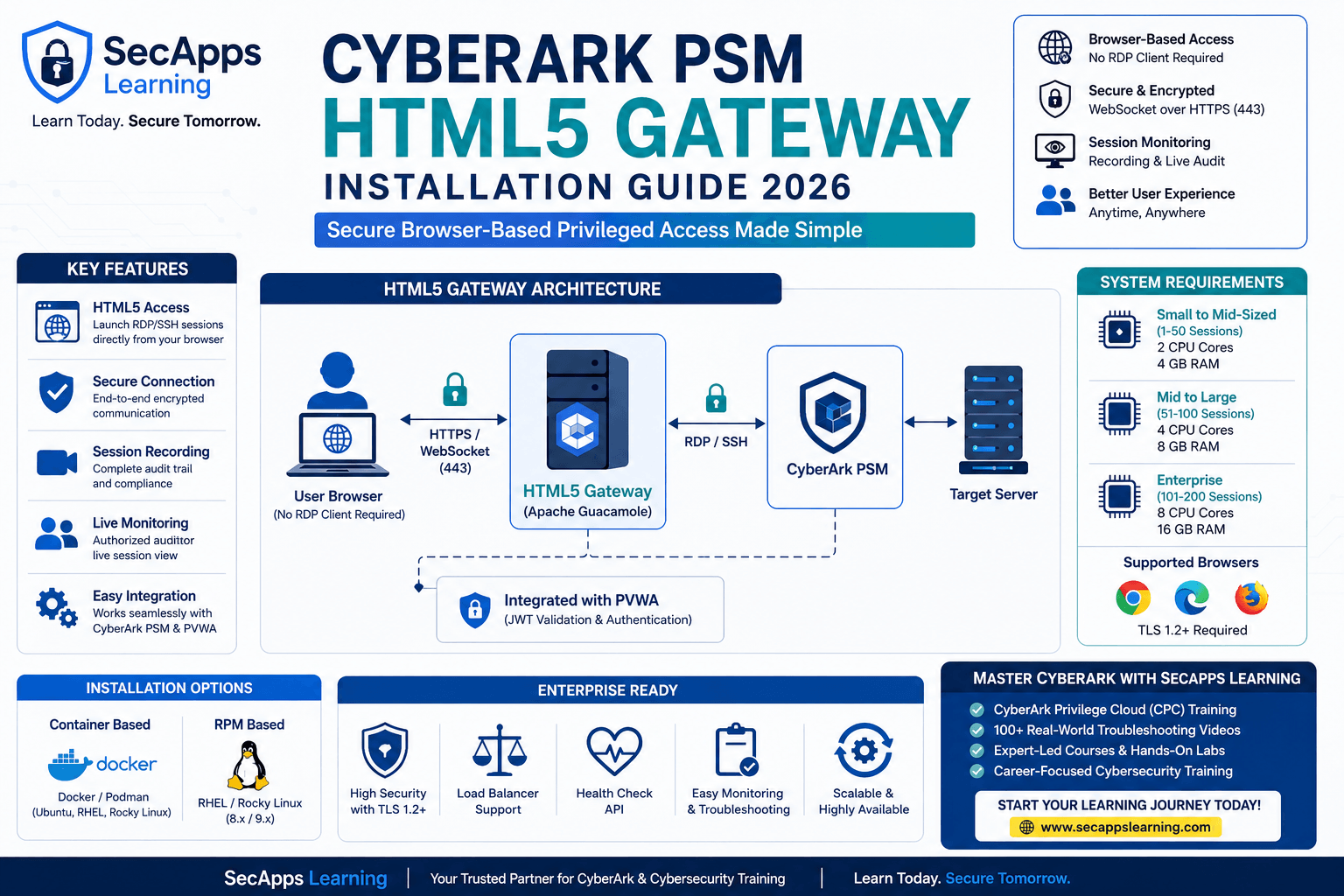
As organizations continue their journey toward Zero Trust and browser-based privileged access, CyberArk's HTML5 Gateway has become one of the most important components in modern Privileged Access Management (PAM) deployments.
Traditionally, users connecting through CyberArk Privileged Session Manager (PSM) required an RDP client installed on their workstation. This approach worked well but introduced additional client-side dependencies and management overhead.
CyberArk HTML5 Gateway eliminates this requirement by enabling secure browser-based privileged sessions. Users can launch RDP and SSH sessions directly from a web browser without installing any remote desktop client software.
The HTML5 Gateway acts as a secure tunnel between the user's browser and the PSM server using encrypted WebSocket communication over HTTPS (TCP 443). This architecture significantly improves user experience while maintaining CyberArk's session isolation, monitoring, recording, and auditing capabilities.
In this guide, we will explore:
◾ What is CyberArk HTML5 Gateway
◾ Architecture and workflow
◾ System requirements
◾ Prerequisites
◾ Installation using Docker/Podman Containers
◾ Installation using RPM Packages
◾ Certificate configuration
◾ Security hardening
◾ Load balancing
◾ Health checks
◾ Troubleshooting
◾ Best practices
CyberArk HTML5 Gateway is a Linux-based component that enables secure browser-based privileged access through CyberArk PSM.
Instead of establishing a traditional RDP connection directly from the endpoint, the session is tunneled through the HTML5 Gateway using secure WebSocket communication.
The user only requires:
◾ A supported web browser
◾ Access to PVWA
◾ Appropriate CyberArk permissions
No RDP client installation is required.
The gateway uses Apache Guacamole internally to render remote desktop sessions directly within the browser.
This approach provides:
◾ Improved user experience
◾ Reduced endpoint dependencies
◾ Secure remote access
◾ Session recording
◾ Session monitoring
◾ Auditor live session viewing
◾ Reduced attack surface
For organizations moving toward browser-based administration and contractor access, HTML5 Gateway is becoming the preferred deployment model.
The overall workflow is straightforward.
User Browser
      |
      | HTTPS / WebSocket (443)
      |
HTML5 Gateway
      |
      | RDP / SSH
      |
CyberArk PSM
      |
      |
Target Server
The process works as follows:
◾ User logs into PVWA
◾ User launches a privileged connection
◾ PVWA redirects the request to HTML5 Gateway
◾ Gateway validates JWT tokens
◾ Gateway establishes communication with PSM
◾ PSM connects to the target server
◾ Session appears directly inside the browser
All monitoring and recording capabilities continue to operate through PSM.
For a deeper understanding of PSM session flow, read:
CyberArk PSM Session Management Complete Guide
Organizations adopt HTML5 Gateway because it provides several operational and security advantages.
◾ Browser-based privileged access
◾ No local RDP client dependency
◾ Secure TLS communication
◾ Centralized session management
◾ Simplified third-party vendor access
◾ Better user experience
◾ Reduced desktop configuration requirements
◾ Support for auditors and live monitoring
◾ Seamless integration with Privilege Cloud
It is especially useful when implementing external vendor access or remote workforce solutions.
To understand how CyberArk Secure Infrastructure Access compares with traditional PSM deployments, refer to:
CyberArk SIA vs PSM Complete Guide
The HTML5 Gateway runs on Linux and supports containerized or RPM-based deployments.
◾ TLS 1.2 supported browsers
◾ Modern Chrome
◾ Microsoft Edge
◾ Mozilla Firefox
◾ Safari
◾ 4 GB RAM
◾ 1-50 Concurrent Sessions
◾ 4 CPU Cores
◾ 8 GB RAM
◾ 51-100 Concurrent Sessions
◾ 8 CPU Cores
◾ 16 GB RAM
◾ 101-200 Concurrent Sessions
CyberArk testing assumes:
◾ 60% RDP sessions
◾ 40% SSH sessions
◾ Full HD screen resolution
Before beginning installation, verify the following:
◾ Administrative access to CyberArk PVWA
◾ Sudo access on Linux server
◾ Network connectivity to PSM
◾ DNS resolution
◾ Certificate availability
◾ Port 443 communication
◾ Port 3389 communication between Gateway and PSM
Failure to validate these prerequisites is one of the most common reasons for installation issues.
Although highly capable, some limitations exist.
◾ Smart Card Redirection not supported
◾ Printer Redirection not supported
◾ Certain NLA-based target connections unsupported
◾ Browser limitations dependent on TLS support
Organizations should evaluate these limitations before large-scale adoption.
CyberArk strongly recommends containerized deployment for modern environments.
Supported platforms include:
Docker
◾ Ubuntu 20.x
◾ Ubuntu 22.x
Podman
◾ RHEL 8.x
◾ RHEL 9.x
◾ Rocky Linux 8.x
◾ Rocky Linux 9.x
Download HTML5 Gateway package from CyberArk Marketplace.
Copy the package to the Linux server.
Extract the installation files.
Grant execute permissions:
chmod +x html5_console.sh
Run installation:
sudo ./html5_console.sh install -l
If existing users or groups conflict:
sudo ./html5_console.sh install -l -f
Create a certificate directory.
sudo mkdir /opt/cert
Place the following certificates inside:
◾ PVWA CA Certificate
◾ PSM Certificate
◾ HTML5 Gateway Certificate
◾ Gateway Private Key
◾ Root CA Certificate
Proper certificate management is critical because JWT validation depends on trusted communication between HTML5 Gateway and PVWA.
Example deployment command:
sudo ./html5_console.sh run -ti \
-p 443:8443 \
-v /opt/cert:/opt/import:ro \
-e AcceptCyberArkEULA=yes \
-e EndPointAddress=https://PVWA/passwordvault \
--hostname psmgw.company.com \
--name psmgw.company.com \
cahtml5gw:
This launches the HTML5 Gateway container and exposes HTTPS services through port 443.
Several deployment parameters significantly affect behavior.
◾ EnableFileTransfer
◾ ClipboardControl
◾ EnableFontSmoothing
◾ AutoReconnectionEnabled
◾ EnableScreenAutoResize
◾ ServerKeyboardLayout
◾ JWT Validation Endpoint
◾ PSM Communication Timeout
Proper tuning improves performance and user experience.
For testing environments, self-signed certificates can be generated using OpenSSL.
Generate Root CA:
openssl genrsa -out rootCA.key 4096
Generate Root Certificate:
openssl req -x509 -new -nodes \
-key rootCA.key \
-sha256 \
-days 1024 \
-out rootCA.crt
Generate Gateway Private Key:
openssl genrsa -out psmgw.key 2048
Generate CSR:
openssl req -new \
-key psmgw.key \
-out psmgw.csr
Generate Gateway Certificate:
openssl x509 -req \
-in psmgw.csr \
-CA rootCA.crt \
-CAkey rootCA.key \
-CAcreateserial \
-out psmgw.crt
For production deployments, enterprise CA certificates should always be used.
Start Container:
sudo ./html5_console.sh start
Stop Container:
sudo ./html5_console.sh stop
Restart Container:
sudo ./html5_console.sh restart
Delete Container:
sudo ./html5_console.sh purge
RPM deployment is preferred in environments where containers are restricted.
Supported Platforms:
◾ Red Hat Enterprise Linux 8
◾ Red Hat Enterprise Linux 9
◾ Rocky Linux 8
◾ Rocky Linux 9
Required Packages:
dnf install java-21-openjdk-headless openssl
Import CyberArk Public Key:
rpm --import RPM-GPG-KEY-CyberArk
Verify Package:
rpm -K -v package.rpm
Digital signature verification protects against package tampering.
CyberArk recommends Tomcat 9.
Set Tomcat location:
export CATALINA_HOME=/opt/tomcat
Create service account:
useradd -m -s /sbin/nologin \
-d /opt/tomcat tomcat
Configure ownership and permissions.
Enable service:
systemctl enable tomcat
Start service:
systemctl start tomcat
Import certificates into the keystore.
keytool -import \
-alias newkey \
-keystore /opt/tomcat/keystore \
-trustcacerts \
-file cert.crt
Configure HTTPS Connector in server.xml.
The HTML5 Gateway should always use TLS-secured communication.
Copy the sample configuration:
cp psmgwparms.sample /var/tmp/psmgwparms
Configure:
◾ AcceptCyberArkEULA
◾ Hardening
◾ WebAppsDir
◾ EndpointAddress
◾ Clipboard Settings
◾ Auto Resize Settings
Install RPM:
dnf install CARKpsmgw-version.rpm
Verify services:
systemctl status guacd
systemctl status tomcat
JWT Validation ensures only authenticated CyberArk sessions can access the gateway.
Without JWT validation:
◾ Unauthorized sessions could attempt access
◾ Security controls weaken significantly
◾ Session trust validation is lost
For this reason, JWT validation should always remain enabled.
Security hardening is one of the most overlooked deployment tasks.
CyberArk provides CIS hardening scripts.
Example:
sudo sh RHEL9-CIS/harden.sh
Hardening protects:
◾ Operating System
◾ SSH Configuration
◾ Authentication Mechanisms
◾ File Permissions
◾ Network Services
After hardening, restart the Linux server.
Additional Tomcat hardening should include:
◾ Disable directory listing
◾ Hide server version information
◾ Restrict HTTP methods
◾ Enable TLS 1.2 and TLS 1.3 only
◾ Remove default applications
◾ Change shutdown command
These steps reduce attack surface significantly.
Large enterprises frequently deploy multiple HTML5 Gateway servers.
Typical architecture:
Users
   |
Load Balancer
   |
-----------------------
|          |          |
GW1       GW2       GW3
CyberArk supports standard load balancers.
Important considerations:
◾ Sticky Sessions Required
◾ Health Checks Required
◾ Session Reconciliation Support
◾ File Transfer Support
Without sticky sessions, browser session consistency issues may occur.
CyberArk provides a built-in REST API health endpoint.
https:///guac/rest/healthcheck
Healthy response:
200 OK
Load balancers should use this endpoint for monitoring.
The majority of deployment issues fall into the following categories.
◾ Certificate trust issues
◾ JWT validation failures
◾ DNS resolution failures
◾ Port 443 blocked
◾ Port 3389 blocked
◾ Incorrect EndpointAddress configuration
◾ Tomcat service failures
◾ guacd daemon failures
◾ Expired certificates
◾ Missing intermediate certificates
Always verify certificates first when troubleshooting HTML5 Gateway connectivity.
For password management troubleshooting scenarios, read:
CyberArk CPM Password Management Complete Guide
For Vault-related troubleshooting, refer to:
CyberArk Vault Server Components & Administration Guide
For SSH-specific deployments, refer to:
CyberArk PSM for SSH Installation Guide
◾ Use enterprise CA-signed certificates.
◾ Keep JWT validation enabled.
◾ Enable CIS hardening immediately after installation.
◾ Configure load balancer sticky sessions.
◾ Monitor health check endpoints continuously.
◾ Patch container images regularly.
◾ Implement certificate lifecycle management.
◾ Test failover procedures regularly.
◾ Monitor Tomcat and guacd logs proactively.
◾ Validate connectivity after every upgrade.
CyberArk HTML5 Gateway is a critical component for organizations looking to provide secure browser-based privileged access while maintaining CyberArk's industry-leading session management and auditing capabilities.
By leveraging Apache Guacamole, secure WebSocket communication, JWT validation, TLS encryption, and modern browser technologies, organizations can eliminate traditional RDP client dependencies and provide a seamless privileged access experience.
Whether you choose the container-based deployment model or the RPM package installation method, following CyberArk's recommended architecture, certificate management practices, hardening standards, and load-balancing guidelines will ensure a secure, scalable, and highly available implementation.
As CyberArk Privilege Cloud and Secure Infrastructure Access continue to evolve, HTML5 Gateway will remain a foundational technology for delivering secure, clientless privileged access across enterprise environments.
Master CyberArk Privilege Cloud, Connectors, Session Management, HTML5 Gateway, CPM, PSM, Vault Administration, Troubleshooting, and Real-World Implementations through SecApps Learning's industry-focused training programs.
CyberArk Privilege Cloud (CPC) Self-Paced Online Training
CyberArk Errors & Troubleshooting – 100+ Real-World Videos
✔ CyberArk Implementation
✔ Privilege Cloud Administration
✔ HTML5 Gateway Deployment
✔ PSM Troubleshooting
✔ CPM Plugin Development
✔ Disaster Recovery
✔ Automation & REST APIs
✔ Certification Preparation
Start building real-world CyberArk expertise today with SecApps Learning.
Your email address will not be published. Required fields are marked*
 August 28 2026
 July 26 2026
 Explained Architecture, Plugins, Connector Management, Hardening and Complete Credential Rotation Guide (2026).png) July 24 2026
July 24 2026
 July 24 2026
.png) July 17 2026
July 17 2026
 July 16 2026
 July 10 2026
 July 09 2026
 July 05 2026
 — Complete Vault, DR, Cluster & Distributed Upgrade Handbook-.png) July 03 2026
July 03 2026
 vs Central Credential Provider (CCP) Complete Guide to Installation, Architecture, Licensing, SDKs, ASCP & Best Practices (2026)-.png) July 01 2026
July 01 2026
.png) June 30 2026
June 30 2026
 June 25 2026
 June 24 2026
.png) June 10 2026
June 09 2026
June 10 2026
June 09 2026
 – Complete Architecture, Deployment, HA, DR & Best Practices Guide 2026.png) June 06 2026
June 06 2026
 Certification Guide 2026 by SL.png) June 04 2026
June 04 2026
 Complete Guide 2026 – Identity Protection, Identity Threat Detection, AI-Powered Security Monitoring, Response Playbooks, and ISI Migration.png) June 02 2026
June 02 2026
 May 30 2026
 Complete Guide – Architecture, Security, User Provisioning & Identity Governance.png) May 29 2026
May 29 2026
 Complete Guide – IdentityIQ, Identity Security Cloud (ISC), Certification, Architecture & Career Roadmap.png) May 27 2026
May 27 2026
 Complete Getting Started Guide – Architecture, Configuration & Real-World Implementation.png) May 26 2026
May 26 2026
 – Complete Comparison 2026.png) May 24 2026
May 24 2026
 May 22 2026
 May 21 2026
 vs Privileged Session Manager (PSM) Complete 2026 Guide.png) May 20 2026
May 20 2026
 May 19 2026
.png) May 18 2026
May 18 2026
.png) May 17 2026
May 17 2026
 The Complete Beginner to Advanced Guide to Ethical Hacking.png) May 15 2026
May 15 2026
 May 15 2026
 May 14 2026
 by SecApps Learning.png) May 14 2026
May 14 2026
 May 13 2026
 (1).png) May 12 2026
May 12 2026
.png) May 11 2026
May 11 2026
 May 10 2026
 May 10 2026
 May 08 2026
.png) May 07 2026
May 07 2026
.png) May 06 2026
May 06 2026
.png) May 06 2026
May 06 2026
 Complete Guide (2026).png) May 05 2026
May 05 2026
.png) May 05 2026
May 05 2026
 (1).png) May 04 2026
May 04 2026
.png) May 03 2026
May 03 2026
.png) May 01 2026
May 01 2026
.png) May 01 2026
May 01 2026
.png) April 30 2026
April 30 2026
.png) April 29 2026
April 29 2026
.png) April 28 2026
April 28 2026
.png) April 27 2026
April 27 2026
 System Health, Safe Management, Platform & Master Policy Explained.png) April 26 2026
April 26 2026
 April 20 2026
.png) April 19 2026
April 19 2026
.png) April 17 2026
April 17 2026
.png) April 16 2026
April 16 2026
.png) April 15 2026
April 15 2026
 April 14 2026
 April 10 2026
 April 09 2026
 April 08 2026
 April 07 2026
 July 31 2025
 May 01 2026
 December 26 2024
 December 15 2024
.jpeg) December 08 2024
December 08 2024
 May 01 2026
 October 29 2024
 October 19 2024
 October 15 2024
 October 07 2024
 September 30 2024
 September 23 2024
 September 16 2024
 May 04 2026
 August 27 2024
 August 27 2024
 August 21 2024
 August 19 2024
 May 01 2026
 May 10 2024
 May 08 2024
 May 01 2026
 April 30 2024
.jpg) April 29 2024
April 29 2024
 April 25 2024
 April 22 2024
 April 12 2024
 April 05 2024
 March 30 2024
 May 01 2026
 March 27 2024
 March 27 2024
 March 11 2024
 March 07 2024
 February 29 2024
.jpg) May 01 2026
May 01 2026
 January 24 2024
 January 20 2024
 January 20 2024
 January 20 2024
 January 20 2024
 January 03 2024
 January 03 2024
 January 03 2024
 January 03 2024
Copyright 2022 SecApps Learning. All Right Reserved

Comments ()