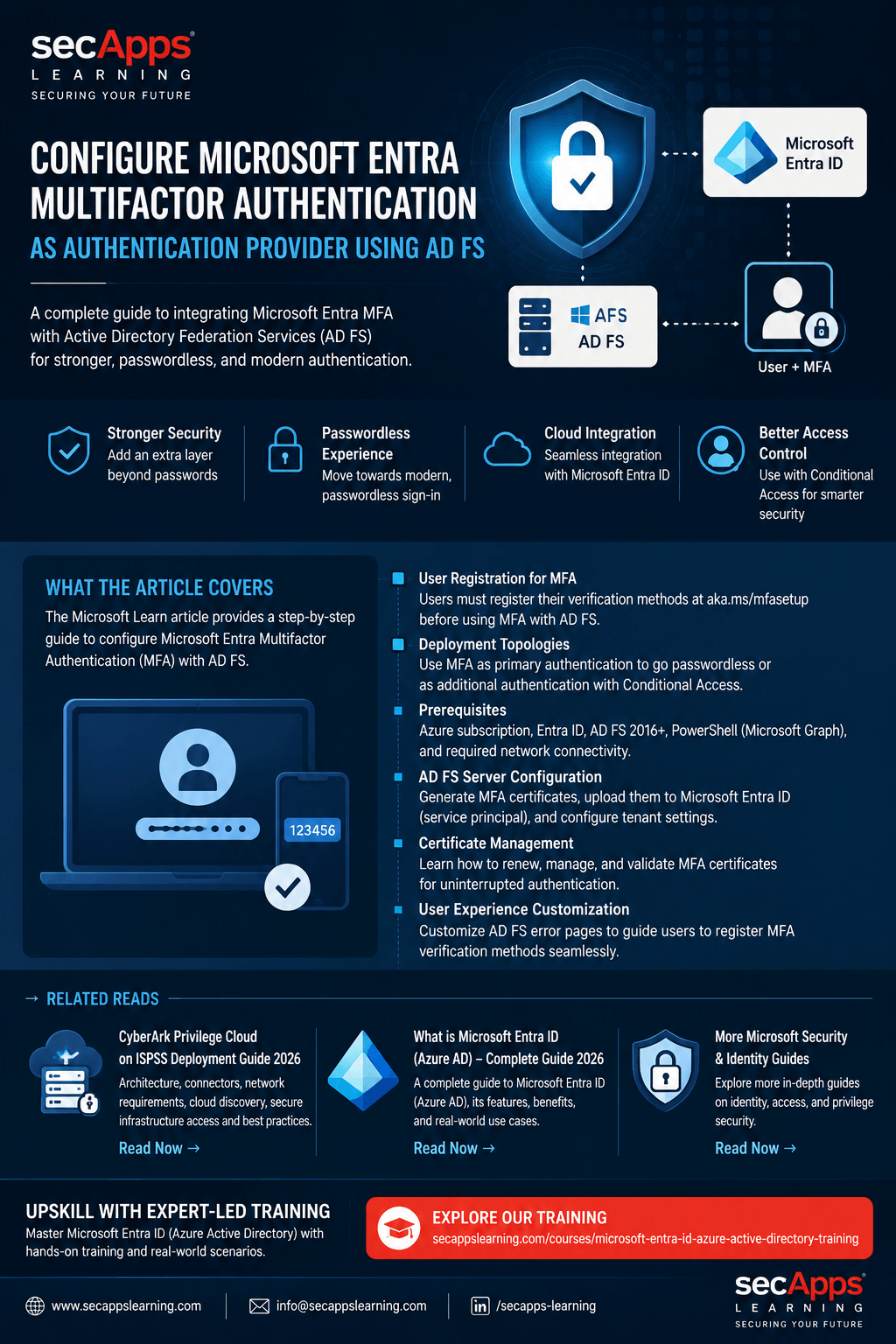
Microsoft Entra ID has become a central component of modern Identity and Access Management (IAM), particularly for organizations operating hybrid environments where on-premises Active Directory, AD FS, and cloud services must work together securely.
When an organization uses Active Directory Federation Services (AD FS) to federate authentication with Microsoft Entra ID, Microsoft Entra multifactor authentication (MFA) can be integrated directly with AD FS to provide stronger authentication for applications and cloud resources.
Microsoft's current documentation applies this integration to Windows Server 2016, 2019, 2022 and 2025. The important architectural change is that the Microsoft Entra MFA adapter integrates directly with AD FS and does not require the old on-premises Azure MFA Server.
In this guide, we will cover the architecture, prerequisites, deployment process, certificate configuration, MFA registration, primary versus secondary authentication, certificate renewal, troubleshooting considerations, and practical security recommendations.
Active Directory Federation Services (AD FS) is a Windows Server role that provides federated authentication and Single Sign-On (SSO) for applications and services.
In a traditional hybrid enterprise environment, the authentication flow can look like:
User → Application → AD FS → Active Directory → Authentication → Application
When Microsoft Entra ID is involved, the architecture can extend to:
User → Microsoft Cloud/Application → Microsoft Entra ID → AD FS → Active Directory
Adding Microsoft Entra MFA strengthens this authentication process by introducing an additional verification mechanism.
Microsoft Entra MFA can be configured with AD FS in two major ways:
▪ Primary authentication — Microsoft Entra MFA is used as the initial authentication mechanism.
▪ Additional/secondary authentication — the user first authenticates through the normal AD FS mechanism and Microsoft Entra MFA is then used as an additional authentication factor.
Microsoft specifically highlights passwordless or reduced-password exposure and stronger authentication as major reasons to use Microsoft Entra MFA with AD FS.
A simplified hybrid authentication architecture can be represented as:
                    Internet / Users
                           │
                           ▼
                  ┌─────────────────┐
                  │ Application /   │
                  │ Microsoft 365   │
                  └────────┬────────┘
                           │
                           ▼
                  ┌─────────────────┐
                  │ Microsoft Entra │
                  │       ID        │
                  └────────┬────────┘
                           │
                    Federation
                           │
                           ▼
                  ┌─────────────────┐
                  │      AD FS      │
                  │ Authentication  │
                  └────────┬────────┘
                           │
                  ┌────────▼────────┐
                  │ Microsoft Entra │
                  │      MFA        │
                  └────────┬────────┘
                           │
                           ▼
                  ┌─────────────────┐
                  │ Active Directory│
                  │     Domain      │
                  └─────────────────┘
The key point is that AD FS remains the federation/authentication component, while Microsoft Entra MFA provides the additional authentication capability.
One of the most important concepts in this deployment is the Microsoft Entra MFA adapter.
In older AD FS 2012 R2 environments, organizations traditionally used the separate Azure MFA Server architecture.
With AD FS 2016 and later, Microsoft introduced an integrated adapter.
This means:
▪ No separate on-premises Azure MFA Server is required.
▪ The MFA adapter is integrated into Windows Server 2016 and later.
▪ AD FS communicates with the Microsoft Entra MFA service.
▪ Each AD FS server in the federation farm needs to be configured correctly.
Microsoft explicitly states that the adapter integrates directly with Microsoft Entra ID.
Before starting the implementation, the environment should meet several requirements.
Microsoft Entra Environment
You need:
▪ A Microsoft Azure subscription with Microsoft Entra ID.
▪ Microsoft Entra MFA.
▪ Appropriate administrative permissions in Microsoft Entra ID.
Microsoft notes that Microsoft Entra ID and MFA are included in Microsoft Entra ID P1/P2 and EMS licensing scenarios.
You need:
▪ Windows Server 2016 or later running AD FS.
▪ An operational AD FS farm.
▪ Active Directory Domain Services.
▪ Federation configured between the on-premises environment and Microsoft Entra ID.
▪ Network connectivity from AD FS to the required Microsoft endpoints.
For the documented configuration, AD FS requires outbound HTTPS connectivity over TCP 443, including communication with Microsoft's authentication and notification endpoints.
Administrative Access
You should have:
▪ Enterprise-level administrative rights for AD FS configuration.
▪ Appropriate Microsoft Entra Application Administrator permissions.
▪ PowerShell access.
▪ Microsoft Graph PowerShell for current Microsoft Entra service-principal configuration.
An important modernization point is that Microsoft's older Azure AD and MSOnline PowerShell modules are deprecated. Microsoft recommends moving to Microsoft Graph PowerShell.
Before a user can successfully authenticate using Microsoft Entra MFA through AD FS, the user needs MFA verification information configured.
This is often called Proof-Up.
A user who has not configured MFA may encounter an AD FS authentication error when MFA is requested.
This allows users to configure their MFA verification information.
The newer registration experience allows users who have no verification methods configured to authenticate using their primary authentication and then complete the security-verification setup.
1. Microsoft Entra MFA as Primary Authentication
In this architecture, Microsoft Entra MFA is configured as the primary authentication method.
The conceptual flow becomes:
User
  │
  ▼
AD FS
  │
  ▼
Microsoft Entra MFA
  │
  ▼
Authentication
  │
  ▼
Application / Microsoft 365
This can reduce dependence on traditional password-based authentication.
However, an important distinction is that Microsoft Entra MFA used as primary authentication is considered one authentication factor in this AD FS configuration. Additional authentication may still be required when accessing resources or managing authentication methods that require stronger MFA.
2. Microsoft Entra MFA as Additional Authentication
The second architecture uses Microsoft Entra MFA as an additional authentication method.
The flow becomes:
User
  │
  ▼
Username / Password
  │
  ▼
AD FS
  │
  ▼
Microsoft Entra MFA
  │
  ▼
Additional Verification
  │
  ▼
Application
This is particularly useful when organizations want to preserve their existing authentication architecture while introducing stronger authentication.
For Microsoft Entra resources, Microsoft recommends using Conditional Access to require MFA and configuring AD FS to communicate that MFA was successfully performed. The SupportsMfa setting and the multipleauthn claim are important parts of this architecture.
If you're working with AD FS 2019, there is an additional configuration consideration.
The Active Directory Claims Provider trust needs its anchor claim type changed from windowsaccountname to UPN.
The relevant PowerShell command is:
Set-AdfsClaimsProviderTrust `
-AnchorClaimType "http://schemas.xmlsoap.org/ws/2005/05/identity/claims/upn" `
-TargetName "Active Directory"
This doesn't change the internal operation of the AD FS farm, although some users may be prompted for credentials again after the change.
Now let's look at the actual implementation.
Step 1 — Generate the MFA Certificate
The first major configuration step is generating an MFA tenant certificate on each AD FS server.
Use:
$certbase64 = New-AdfsAzureMfaTenantCertificate -TenantID
The generated certificate is stored in the local computer certificate store.
This certificate establishes the trust/credential relationship used by the AD FS server when communicating with the Microsoft Entra MFA service.
Important
If you have:
ADFS01
ADFS02
ADFS03
you need to perform the required certificate configuration on all three AD FS servers.
This is one of the most important operational considerations in a load-balanced AD FS farm.
Step 2 — Configure the Microsoft Entra MFA Client Service Principal
The generated certificate must then be added as a credential to the Microsoft Entra MFA Client service principal.
Microsoft identifies the MFA Client using:
981f26a1-7f43-403b-a875-f8b09b8cd720
The current documented approach uses Microsoft Graph PowerShell.
First connect:
Connect-MgGraph -Scopes 'Application.ReadWrite.All'
Then retrieve the service principal:
$servicePrincipalId = (
    Get-MgServicePrincipal `
    -Filter "appid eq '981f26a1-7f43-403b-a875-f8b09b8cd720'"
).Id
Retrieve the existing credentials:
$keyCredentials = (
    Get-MgServicePrincipal `
    -Filter "appid eq '981f26a1-7f43-403b-a875-f8b09b8cd720'"
).KeyCredentials
Convert the certificate:
$certX509 = [System.Security.Cryptography.X509Certificates.X509Certificate2](
    [System.Convert]::FromBase64String($certBase64)
)
Create the new credential:
$newKey = @(@{
    CustomKeyIdentifier = $null
    DisplayName = $certX509.Subject
    EndDateTime = $null
    Key = $certX509.GetRawCertData()
    KeyId = [guid]::NewGuid()
    StartDateTime = $null
    Type = "AsymmetricX509Cert"
    Usage = "Verify"
    AdditionalProperties = $null
})
Finally:
$keyCredentials += $newKey

Update-MgServicePrincipal `
-ServicePrincipalId $servicePrincipalId `
-KeyCredentials $keyCredentials
Microsoft emphasizes that this certificate credential must be configured for every AD FS server in the farm; otherwise MFA authentication can fail when traffic reaches a server that hasn't been configured.
Step 3 — Configure the AD FS Farm
After the certificates have been configured on the individual servers, configure the AD FS farm with the Microsoft Entra tenant information.
Run:
Set-AdfsAzureMfaTenant `
-TenantId  `
-ClientId 981f26a1-7f43-403b-a875-f8b09b8cd720
Unlike the certificate configuration, this farm-level command only needs to be executed once for the AD FS farm.
Step 4 — Restart AD FS Services
The AD FS service needs to be restarted on the servers for the configuration changes to take effect.
In a production environment, don't simply restart every server simultaneously.
A safer approach is:
Remove ADFS01 from NLB
        ↓
Drain connections
        ↓
Restart AD FS
        ↓
Validate
        ↓
Return ADFS01 to NLB
        ↓
Repeat for ADFS02
        ↓
Repeat for ADFS03
This minimizes authentication disruption.
Microsoft specifically recommends taking servers out of NLB rotation one at a time and allowing active connections to drain.
Step 5 — Enable MFA in AD FS
After the farm configuration is complete, Microsoft Entra MFA becomes available as an authentication method.
For primary authentication, configure the appropriate authentication methods under the AD FS authentication configuration.
If Microsoft Entra MFA is being used as an additional authentication method, ensure it is enabled under the appropriate Multifactor/Additional authentication settings.
If it isn't enabled correctly, users can encounter errors such as:
No valid strong authentication method found.
Microsoft documents this configuration requirement explicitly.
One of the most important concepts for hybrid identity administrators is the relationship between AD FS MFA and Microsoft Entra Conditional Access.
When AD FS performs MFA, Microsoft Entra ID needs to understand that MFA was already performed.
The domain configuration can therefore use:
SupportsMfa = $true
For scenarios where AD FS MFA is being used to satisfy Microsoft Entra MFA requirements, the appropriate multipleauthn claim also needs to be emitted after successful two-step authentication.
This allows Microsoft Entra ID and Conditional Access to recognize the authentication strength performed by AD FS.
This is an area that administrators should not overlook.
The certificates generated by:
New-AdfsAzureMfaTenantCertificate
are valid for approximately two years by default.
Therefore, certificate monitoring should be part of the AD FS operational process.
You can inspect the certificate on each AD FS server under the local computer certificate store.
Look for the certificate associated with:
Microsoft AD FS Microsoft Entra multifactor authentication
When the certificate approaches expiration, generate a replacement.
For a certificate that has not yet expired:
$newcert = New-AdfsAzureMfaTenantCertificate `
-TenantId  `
-Renew $true
Microsoft intentionally provides a validity overlap so administrators have time to upload the new certificate to the Microsoft Entra service principal before the new certificate becomes active.
After generating the new certificate, add it to the MFA Client service principal using Microsoft Graph PowerShell.
If the previous certificate has already expired, Microsoft advises not using -Renew $true; instead, generate a replacement certificate normally.
After the new certificate becomes valid, AD FS will begin using it.
Microsoft documents AD FS Admin Event ID 547 as an indication that the tenant certificate has been renewed.
Administrators should therefore monitor:
Event Viewer
   ↓
Applications and Services Logs
   ↓
AD FS
   ↓
Admin
Look for certificate renewal events and verify that the new certificate thumbprint and expiration date are reflected.
A common real-world problem occurs when a user reaches an MFA-protected AD FS application but has never configured an MFA verification method.
The user may receive a generic authentication error.
From a user-experience perspective, this isn't ideal.
Instead of simply showing:
Authentication attempt failed.
organizations can customize the AD FS sign-in experience and direct the user to the MFA registration process.
Microsoft documents this using an AD FS Web Theme and onload.js customization.
Create a new theme:
New-AdfsWebTheme -Name ProofUp -SourceName default
Create a working directory and export the default theme:
New-Item -Path 'C:\Theme' -ItemType Directory

Export-AdfsWebTheme `
-Name default `
-DirectoryPath C:\Theme
The relevant JavaScript file is:
C:\Theme\script\onload.js
Administrators can add JavaScript that detects the MFA registration error and provides the user with an appropriate registration message.
The page can then redirect the user to the MFA registration experience.
After modifying onload.js, import it:
Set-AdfsWebTheme `
-TargetName ProofUp `
-AdditionalFileResource @{
    Uri='/adfs/portal/script/onload.js';
    path="c:\theme\script\onload.js"
}
Then activate the theme:
Set-AdfsWebConfig -ActiveThemeName "ProofUp"
The result is a much better user experience:
User attempts login
        ↓
MFA required
        ↓
User has no MFA method
        ↓
AD FS detects registration issue
        ↓
User receives registration instructions
        ↓
User completes MFA setup
        ↓
User retries application
        ↓
Authentication succeeds
Microsoft provides this approach specifically for guiding users who haven't yet configured their MFA verification information.
For production environments, MFA integration should be treated as an identity infrastructure project rather than simply enabling a checkbox.
Certificate Management
▪ Monitor MFA certificate expiration on every AD FS server.
▪ Maintain documentation of certificate thumbprints and expiration dates.
▪ Renew certificates before expiration.
▪ Ensure the new certificates are configured in Microsoft Entra ID.
High Availability
▪ Apply configuration consistently across the entire AD FS farm.
▪ Don't configure only the primary AD FS server.
▪ Validate every node before returning it to the NLB.
▪ Restart nodes one at a time.
Network Connectivity
▪ Validate outbound HTTPS connectivity.
▪ Ensure firewall/proxy rules permit required Microsoft endpoints.
▪ Monitor changes to corporate proxy infrastructure.
Identity Configuration
▪ Validate UPN consistency.
▪ For AD FS 2019, verify the Active Directory Claims Provider anchor claim configuration.
▪ Validate SupportsMfa.
▪ Validate the multipleauthn claim for relevant scenarios.
User Experience
▪ Ensure users know how to register MFA.
▪ Provide a clear MFA registration process.
▪ Consider customizing the AD FS sign-in experience.
Monitoring
▪ Monitor AD FS authentication failures.
▪ Monitor certificate expiration.
▪ Monitor AD FS Admin event logs.
▪ Test authentication against every AD FS node.
MFA Works on One AD FS Server but Fails on Another
This is often an indicator of inconsistent configuration.
Check:
▪ MFA certificate exists on every server.
▪ Certificate credentials were configured correctly.
▪ AD FS services were restarted where required.
▪ All nodes have network connectivity.
▪ Each server is using the expected tenant configuration.
Microsoft specifically warns that MFA can fail if the certificate isn't configured against the MFA Client service principal for every AD FS server.
This can occur when Microsoft Entra MFA is expected as an additional authentication method but isn't properly enabled in AD FS.
Check the Multifactor/Additional authentication configuration.
Also validate the AD FS MFA provider configuration.
If the user has no verification information, the authentication process may fail.
Organizations can also customize the AD FS sign-in page to provide this guidance automatically.
This usually requires investigation of the federation and claims configuration.
Verify:
SupportsMfa = $true
and ensure the appropriate:
multipleauthn
claim is emitted after successful MFA.
The goal is for Microsoft Entra ID to correctly understand that MFA has already occurred at AD FS.
Microsoft Entra ID isn't simply a cloud directory.
It forms a major component of Microsoft's broader identity ecosystem, providing capabilities around identity management, authentication, application access and access control.
For organizations operating hybrid infrastructure, understanding the relationship between:
Active Directory
        +
AD FS
        +
Microsoft Entra ID
        +
MFA
        +
Conditional Access
        +
Privileged Access
is extremely important.
For a broader understanding of Microsoft Entra ID, its architecture, identity concepts, authentication, applications, Conditional Access and IAM capabilities, see our detailed guide:
Link: https://secappslearning.com/post/what-is-microsoft-entra-id-azure-ad-complete-guide-2026
It's also important to understand that Microsoft Entra ID and Privileged Access Management (PAM) are not the same thing.
Microsoft Entra ID primarily addresses identity and access management across users, applications and cloud resources.
PAM solutions such as CyberArk focus heavily on protecting privileged identities, privileged credentials, administrative accounts and access to sensitive infrastructure.
In a modern enterprise, these technologies frequently complement each other rather than replace each other.
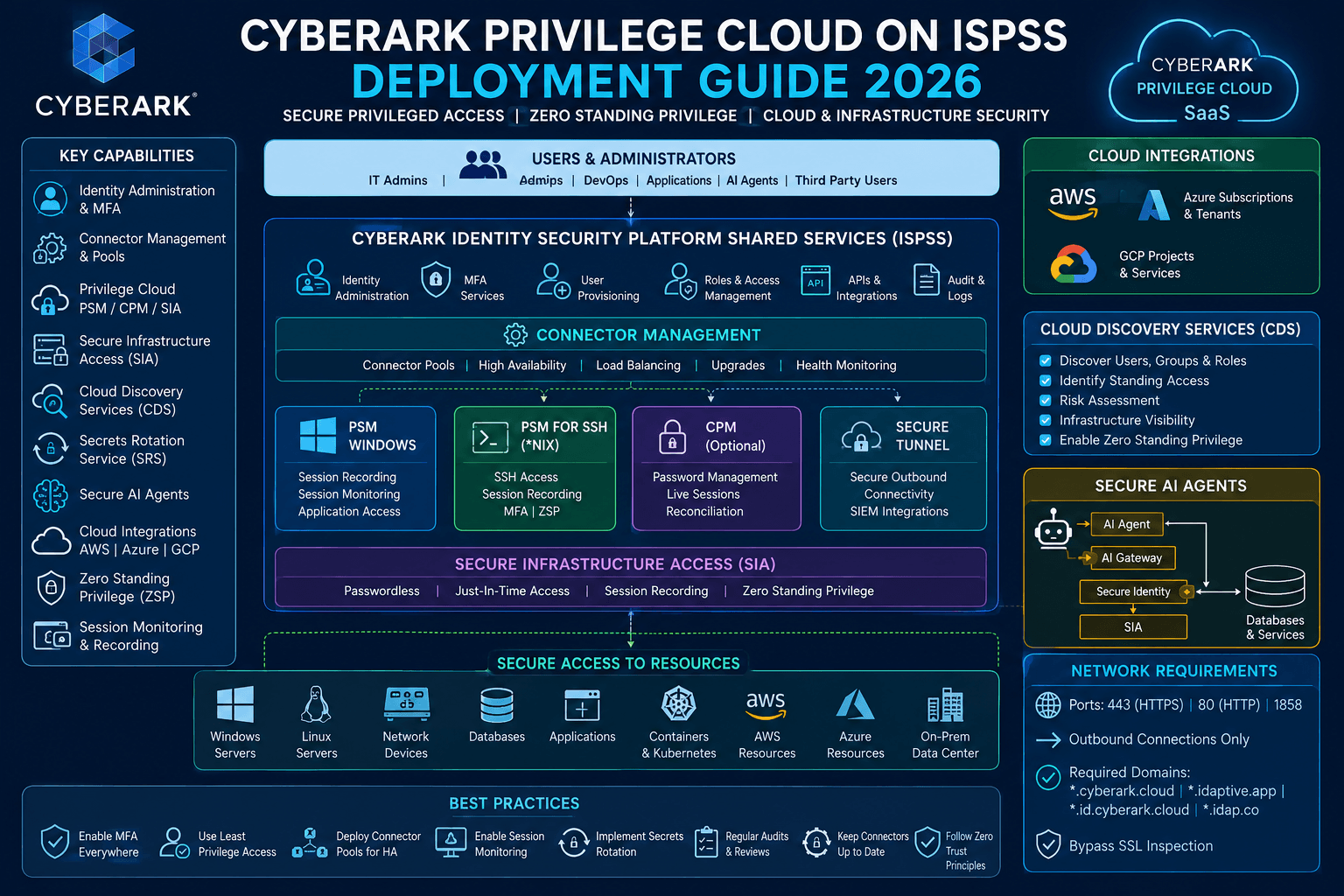
A broader look at modern secure infrastructure access and CyberArk Privilege Cloud architecture can be found here:
Link: https://secappslearning.com/post/cyberark-privilege-cloud-on-ispss-deployment-guide-2026-architecture-connectors-network-requirements-cloud-discovery-secure-infrastructure-access-and-best-practices
Integrating Microsoft Entra MFA with AD FS provides organizations with a way to strengthen authentication across hybrid identity environments without deploying the legacy on-premises Azure MFA Server.
The implementation can be summarized as:
1. Prepare Microsoft Entra ID
          ↓
2. Prepare AD FS
          ↓
3. Generate MFA certificate
          ↓
4. Configure certificate on every AD FS server
          ↓
5. Add certificate to MFA Client Service Principal
          ↓
6. Configure AD FS tenant information
          ↓
7. Restart AD FS nodes safely
          ↓
8. Enable primary or additional MFA
          ↓
9. Configure SupportsMfa / claims where required
          ↓
10. Register users for MFA
          ↓
11. Test authentication
          ↓
12. Monitor and renew certificates
The most important operational lesson is that AD FS MFA is a farm-level deployment but involves server-level certificate configuration. Every AD FS node must be correctly configured, certificates must be maintained, and Microsoft Entra must receive the appropriate authentication information for Conditional Access scenarios.
If you're looking to build practical skills in Microsoft Entra ID, Azure AD, IAM, authentication, Conditional Access and enterprise identity security, you can explore the SecApps Learning training program here:
Link: https://secappslearning.com/courses/microsoft-entra-id-azure-active-directory-training
Keywords: Microsoft Entra MFA with AD FS, configure Microsoft Entra MFA AD FS, AD FS MFA configuration, Microsoft Entra multifactor authentication, Azure AD MFA AD FS, AD FS 2019 MFA, AD FS 2022 MFA, Windows Server AD FS MFA, Microsoft Entra ID authentication, AD FS Conditional Access, SupportsMfa AD FS, multipleauthn claim, AD FS MFA certificate, Microsoft Entra MFA certificate renewal, hybrid identity security, Microsoft Entra ID IAM.
Your email address will not be published. Required fields are marked*
August 28 2026
 July 26 2026
 Explained Architecture, Plugins, Connector Management, Hardening and Complete Credential Rotation Guide (2026).png) July 24 2026
July 24 2026
 July 24 2026
.png) July 17 2026
July 17 2026
 July 16 2026
 July 10 2026
 July 09 2026
 July 05 2026
 — Complete Vault, DR, Cluster & Distributed Upgrade Handbook-.png) July 03 2026
July 03 2026
 vs Central Credential Provider (CCP) Complete Guide to Installation, Architecture, Licensing, SDKs, ASCP & Best Practices (2026)-.png) July 01 2026
July 01 2026
.png) June 30 2026
June 30 2026
 June 25 2026
 June 24 2026
.png) June 10 2026
June 10 2026
 June 09 2026
 – Complete Architecture, Deployment, HA, DR & Best Practices Guide 2026.png) June 06 2026
June 06 2026
 Certification Guide 2026 by SL.png) June 04 2026
June 04 2026
 Complete Guide 2026 – Identity Protection, Identity Threat Detection, AI-Powered Security Monitoring, Response Playbooks, and ISI Migration.png) June 02 2026
June 02 2026
 May 30 2026
 Complete Guide – Architecture, Security, User Provisioning & Identity Governance.png) May 29 2026
May 29 2026
 Complete Guide – IdentityIQ, Identity Security Cloud (ISC), Certification, Architecture & Career Roadmap.png) May 27 2026
May 27 2026
 Complete Getting Started Guide – Architecture, Configuration & Real-World Implementation.png) May 26 2026
May 26 2026
 – Complete Comparison 2026.png) May 24 2026
May 24 2026
 May 22 2026
 May 21 2026
 vs Privileged Session Manager (PSM) Complete 2026 Guide.png) May 20 2026
May 20 2026
 May 19 2026
.png) May 18 2026
May 18 2026
.png) May 17 2026
May 17 2026
 The Complete Beginner to Advanced Guide to Ethical Hacking.png) May 15 2026
May 15 2026
 May 15 2026
 May 14 2026
 by SecApps Learning.png) May 14 2026
May 14 2026
 May 13 2026
 (1).png) May 12 2026
May 12 2026
.png) May 11 2026
May 11 2026
 May 10 2026
 May 10 2026
 May 08 2026
.png) May 07 2026
May 07 2026
.png) May 06 2026
May 06 2026
.png) May 06 2026
May 06 2026
 Complete Guide (2026).png) May 05 2026
May 05 2026
.png) May 05 2026
May 05 2026
 (1).png) May 04 2026
May 04 2026
.png) May 03 2026
May 03 2026
.png) May 01 2026
May 01 2026
.png) May 01 2026
May 01 2026
.png) April 30 2026
April 30 2026
.png) April 29 2026
April 29 2026
.png) April 28 2026
April 28 2026
.png) April 27 2026
April 27 2026
 System Health, Safe Management, Platform & Master Policy Explained.png) April 26 2026
April 26 2026
 April 20 2026
.png) April 19 2026
April 19 2026
.png) April 17 2026
April 17 2026
.png) April 16 2026
April 16 2026
.png) April 15 2026
April 15 2026
 April 14 2026
 April 10 2026
 April 09 2026
 April 08 2026
 April 07 2026
 July 31 2025
 May 01 2026
 December 26 2024
 December 15 2024
.jpeg) December 08 2024
December 08 2024
 May 01 2026
 October 29 2024
 October 19 2024
 October 15 2024
 October 07 2024
 September 30 2024
 September 23 2024
 September 16 2024
 May 04 2026
 August 27 2024
 August 27 2024
 August 21 2024
 August 19 2024
 May 01 2026
 May 10 2024
 May 08 2024
 May 01 2026
 April 30 2024
.jpg) April 29 2024
April 29 2024
 April 25 2024
 April 22 2024
 April 12 2024
 April 05 2024
 March 30 2024
 May 01 2026
 March 27 2024
 March 27 2024
 March 11 2024
 March 07 2024
 February 29 2024
.jpg) May 01 2026
May 01 2026
 January 24 2024
 January 20 2024
 January 20 2024
 January 20 2024
 January 20 2024
 January 03 2024
 January 03 2024
 January 03 2024
 January 03 2024
Copyright 2022 SecApps Learning. All Right Reserved

Comments ()